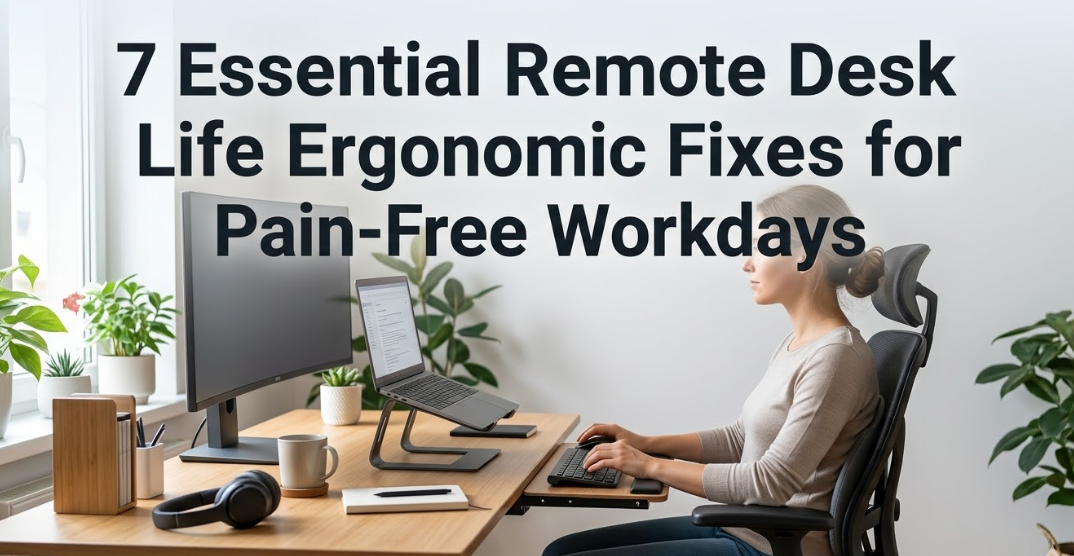
Meta Description: Remote desk life ergonomic fixes can eliminate daily pain and boost your focus. Discover 7 proven, easy-to-apply changes that transform your home office into a pain-free zone.
7 Essential Remote Desk Life Ergonomic Fixes for Pain-Free WorkdaysCommon physical complaints among remote workers — data based on occupational health surveys.
Staying home to work sounds like a dream. No commute, no awkward office chair you didn’t choose, no cruel fluorescent lights buzzing above. But millions of remote workers are quietly suffering every single day — and the majority don’t even realize their workspace is to blame.
Neck stiffness by noon. A sore lower back by 2 PM. Wrist soreness that doesn’t even surface until evening. These are not random aches. They are a direct byproduct of a badly arranged remote desk life.
The good news? You don’t have to spend thousands of dollars solving it. Most remote desk life ergonomic fixes are free or very cheap. What they do need is attention — a couple of purposeful adjustments to how you sit, where you look, and the position of your hands on the keyboard.
This guide covers 7 essential ergonomic changes that can actually change how you feel at the end of a workday. These are field-tested, evidence-based tweaks — not ambiguous instructions like “sit up straight.” Let’s get into them.
Fix #1: Your Chair Is Not Your Enemy — But It Probably Was Before
Your office chair is the very foundation of your remote desk life. If your chair is set up wrong, everything else you fix will be undermined.
Here’s the basic goal: your hips should be even with or slightly higher than your knees, your feet flat on the floor, and your lower back softly supported.
Three Chair Adjustments Most People Skip
Most people only adjust the height of their seat. But there are three settings that matter:
Seat height — Sit down and put your feet flat on the floor. If your knees are lifted above hip level, you’re sitting too low. If your legs dangle, you’re too high. Use a footrest if needed.
Seat depth — Slide back until your spine makes contact with the backrest. There should be about two to three fingers of space between the back of your knee and the front edge of the seat. Sitting too far back compresses the backs of your thighs and restricts blood flow.
Lumbar support — Your lower back should be gently supported, not aggressively pushed forward. If your chair doesn’t have lumbar support, roll up a small towel and put it at the small of your back.
When Your Chair Is Just Bad
Sometimes the chair is just not ergonomic. A dining chair or a soft couch is not made for eight hours of dedicated work. If you cannot upgrade right now, focus on correcting your seat height and adding lumbar support above everything else — they will give you the biggest return on investment.
Fix #2: Your Screen Height Is Adding to Your Pain
Here’s a fact that baffles most remote workers: every inch your head tilts forward adds roughly 10 extra pounds of effective pressure on your neck. With your head tilted forward 45 degrees, your neck is carrying around 50 pounds of force.
Which is why neck and shoulder pain is the number one complaint in remote desk life. And very often the solution is simply fixing the monitor height.
Where Your Screen Actually Should Be
The top of your monitor should sit at or just slightly below your eye level while sitting up straight. That means your eyes naturally look slightly downward to read the center of the screen — which is the most comfortable gaze angle.
Your screen should also be about 50 to 70 centimeters (roughly an arm’s length) away from your face. Too close causes eye strain. Too far and you end up leaning forward, which brings back the neck problem.
Quick Fixes That Cost Nothing
- Stack books, boxes, or a ream of paper under your monitor
- Try a laptop stand (available from about $15)
- If you use a laptop without an external monitor, an external display is the single biggest upgrade you can make
Plugging in an external keyboard and mouse when you raise your laptop isn’t optional — it’s part of the solution. Otherwise, you get the screen height right but destroy your wrist and shoulder angle.
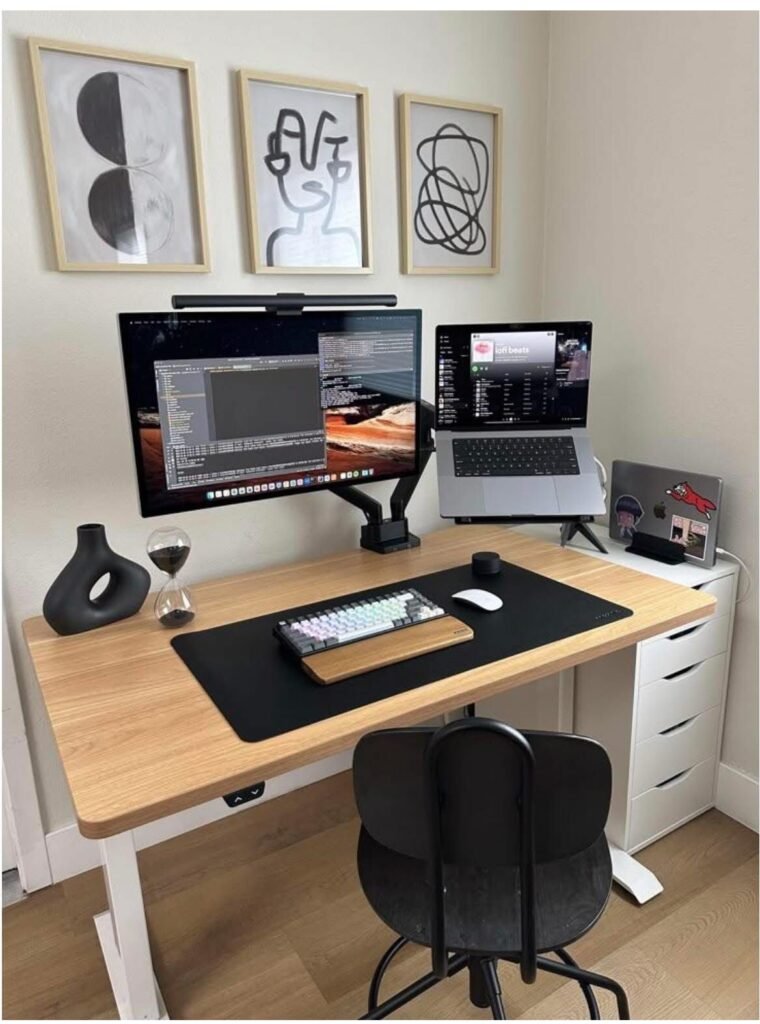
Fix #3: The Keyboard and Mouse Placement Trap
Most people put their keyboard right in front of them and the mouse all the way to the far right. That is how repetitive strain injuries are created.
Your shoulders should be relaxed — not raised, not reaching forward. Your elbows should sit at approximately 90 to 100 degrees. And your wrists should be neutral, meaning straight, not bent up or down.
Common Keyboard Mistakes in a Remote Desk Setup
| Mistake | Why It Hurts | The Fix |
|---|---|---|
| Keyboard too far away | Forces shoulders forward | Pull it closer — elbows near your sides |
| Wrist rests used while typing | Creates wrist pressure | Use only during breaks |
| Mouse too far to the right | Overextends shoulder | Keep mouse right next to keyboard |
| Keyboard legs propped up | Bends wrists upward | Keep flat or slightly down-tilted |
| Typing with tension | Strains tendons | Use a light, relaxed touch |
The Mouse Is Usually to Blame
If you use a standard mouse throughout the day, experiment with placing it as close to the keyboard as possible. Compact or tenkeyless keyboards help here because they remove the number pad on the right — which is one reason so many ergonomics experts recommend them for remote desk life.
A vertical mouse is also worth considering if you suffer from wrist pain. It holds your hand in a natural handshake posture instead of flat and palm-down, which greatly reduces forearm strain.
Fix #4: Lighting That Stops Working Against You
Eye strain and headaches in remote desk life are frequently blamed on screen time. But the real culprit is usually contrast — specifically, the difference in brightness between your screen and your environment.
If your background is much brighter or much darker than your screen, your eyes are constantly adjusting. That adjustment cycle is exhausting.
The Two Most Common Lighting Problems in Home Offices
Problem one: windows behind you. If a bright window sits behind your monitor, your screen looks washed out and you crank the brightness up to compensate. Now you have a bright screen in a bright room — fine. But glance away from the screen toward a darker wall and your eyes scramble to adjust.
Problem two: windows facing you. A window directly in front of you creates glare on your screen and a harsh light source in your direct line of sight. That leads to squinting and constant pupil constriction.
The Simple Fix
Position your desk so the main window is on your left or right side — not in front of you or behind. That gives you natural daylight without creating glare or silhouetting your screen.
Add a desk lamp pointed at your work surface or wall (not directly at your face) to reduce contrast between your screen and the room. A warm-toned light in the 2700–3000K range is gentler on the eyes than harsh white or cool blue lighting.
And activate your monitor’s blue light filter in the evenings. Most operating systems have a built-in “night mode” setting — it’s not only for sleep quality, it genuinely reduces eye fatigue during late work sessions.
Fix #5: The Sitting vs. Standing Balance That Really Counts
Standing desks have taken off as a remote desk life upgrade. And they are genuinely useful — but only if you use them correctly. Standing all day is just as damaging as sitting all day.
The research is clear: posture variation is the goal, not any single “correct” posture.A sample ergonomic workday — sitting and standing intervals broken up with short movement breaks.
The Practical Sit-Stand Ratio
Aim for a rhythm of roughly 45 minutes sitting followed by 15 minutes standing. During your lunch hour or long breaks, walk around. Movement, even brief flurries of it, hugely diminishes the cumulative load on your spine, hips, and legs.
You do not need an expensive motorized standing desk. A fixed-height standing desk, a monitor riser, or even a stable countertop at the right height can give you the same benefit. The key is that your elbows remain at 90 degrees and your screen stays at eye level whether you’re sitting or standing.
The Anti-Fatigue Mat
Stand on a hard floor and within 20 minutes you will feel it in your feet, knees, and lower back. An anti-fatigue mat — the kind used in kitchens and workshops — makes a real difference. It encourages small weight shifts and micro-movements in your legs that alleviate strain.
Fix #6: Your Wrists and Arms Are Sending You a Warning
Carpal tunnel syndrome, tendinitis, and repetitive strain injuries are among the most common long-term consequences of poor remote desk life ergonomics. They build slowly, over months. By the time they become painful, they are already an established problem.
Catching and correcting improper wrist positioning early is one of the most important remote desk life ergonomic fixes you can make.
What a Neutral Wrist Position Actually Looks Like
A neutral wrist is straight — not bent up, not bent down, not twisted to one side. When you look at your forearm from the side, it should be a straight line from your elbow to your knuckles.
Most people break this in three ways:
Extension (wrist bent upward) — caused by a keyboard that is too thick or positioned too high. Fix: lower the keyboard surface, or use a thinner keyboard.
Flexion (wrist bent downward) — caused by armrests set too low, forcing you to drop your wrists. Fix: raise your armrests or add a padded wrist rest.
Ulnar deviation (wrist angled outward) — the most overlooked issue. When a standard straight keyboard forces your hands apart, your wrists angle outward unnaturally. Fix: a split or angled keyboard keeps your wrists in a more neutral line.
Micro-Breaks and the 20-20-20 Rule
Every 20 minutes, look at something 20 feet away for at least 20 seconds. This resets your eye focus and also gives your hands and wrists a break from typing. Add a 5-minute hand stretch every hour — open and close your fist fully, rotate your wrists, and press your palms together in a prayer stretch.
These take less than five minutes. They prevent injuries that can sideline you for months.
Fix #7: Your Environment Is Part of Your Ergonomics
This last fix is often left out of ergonomics guides, but it is deeply connected to physical wellbeing in a remote desk life: your surroundings — temperature, sound, air quality, and desk clutter — directly affect your posture and tension levels.
Temperature and Muscle Tension
Cold muscles tense up. If your home office is on the cool side, you may be unconsciously hunching your shoulders or tensing your neck — not because something is wrong with your chair, but because you’re cold. Keep your workspace at a comfortable temperature, or have a light layer handy.
Desk Clutter and Arm Reach
A cluttered desk has you reaching, twisting, and leaning constantly to grab things. This is surprisingly hard on your spine and shoulder joints over time. The solution: keep only your most-used items — phone, notebook, pen — within easy arm’s reach. Everything else goes elsewhere.
Noise and Cognitive Tension
This is subtle but real. People physically tense their shoulders and jaws in high-noise environments — a well-documented stress response. This muscular tension builds up over eight hours. If you work in a noisy environment, noise-canceling headphones or a white noise machine can reduce not only your distraction but also involuntary physical tension. According to the Mayo Clinic’s workplace ergonomics guidelines, managing your full environment — including noise and temperature — is a core part of a healthy workstation setup.

At a Glance: The 7 Ergonomic Fixes
| Fix | Core Adjustment | Approx. Cost |
|---|---|---|
| 1. Chair setup | Seat height, depth & lumbar | $0–$20 (footrest/towel) |
| 2. Monitor height | Top of screen at eye level | $0–$30 (stand/riser) |
| 3. Keyboard & mouse | Elbows 90°, wrists neutral | $0–$60 (compact keyboard) |
| 4. Lighting | Window to the side, desk lamp | $0–$30 (lamp) |
| 5. Sit-stand rhythm | 45 min sit / 15 min stand | $0–$50 (anti-fatigue mat) |
| 6. Wrist positioning | Straight forearm, no bends | $0–$25 (wrist rest) |
| 7. Environment | Temp, clutter, noise control | $0–$30 (white noise machine) |
How to Build These Habits Into Your Daily Routine
Knowing about ergonomic fixes is only half the battle. The other half is making them automatic.
Start by doing a five-minute desk audit at the beginning of each week. Sit down in your normal working position and ask: Is my screen at eye level? Are my feet flat? Are my wrists straight? Can I reach my mouse without extending my shoulder?
Set a recurring timer for every 45 minutes to stand and move. Use it religiously for two weeks — then it becomes a habit.
Make the adjustments permanent, not temporary. If you throw your laptop on a stand today but abandon it tomorrow, nothing changes. Commit to one fix at a time, let it become normal, then add the next one.
Your remote desk life ergonomic setup is not a one-time project. Your body changes, your chair wears down, your habits drift. A monthly check-in takes five minutes and keeps everything in alignment.
Frequently Asked Questions
Q: How quickly will I notice a difference after making these ergonomic adjustments? Most people find their shoulder and neck tension lessens within a few days of correcting their monitor height and chair position. Deeper improvements in back pain can take one to three weeks as your muscles adapt to proper alignment.
Q: Do I really need to buy a standing desk for a healthy remote work setup? No. A standing desk is useful but not necessary. The main goal is postural variety. A high surface like a kitchen counter or a monitor riser on a shelf delivers the same benefits at a fraction of the cost.
Q: I work on a laptop without an external monitor. What should I prioritize? An external monitor, or a laptop stand with a separate keyboard and mouse, is the single most significant upgrade for laptop-only setups. The monitor height fix alone addresses most neck and shoulder complaints.
Q: Is sitting on an exercise ball a good ergonomic substitute for a chair? Research on this is mixed. Exercise balls may promote core engagement in short bursts, but they don’t offer adequate spinal support for all-day work. They are better suited for 15–20 minute stints than as a full-time chair replacement.
Q: How do I know if my wrist pain is from poor ergonomics or something more serious? If wrist pain builds gradually over weeks and is associated with long typing sessions, poor ergonomics is almost certainly to blame. If you have numbness or tingling in the fingers, or pain that wakes you at night, see a doctor — these could be signs of carpal tunnel syndrome or tendinitis that requires medical attention.
Q: Can the 20-20-20 rule actually reduce eye strain? Yes. Optometrists recommend it specifically for screen-intensive work. It doesn’t eliminate digital eye strain entirely, but it significantly reduces its buildup over the course of a day. Pairing it with proper ambient lighting makes it even more effective.
Q: What if I share a workspace and can’t set everything up permanently? Focus on the tweaks you can carry with you or set up in under a minute — a seat cushion, a portable laptop stand, and a compact keyboard and mouse. These three alone address most remote desk life ergonomic issues, even in shared or temporary setups.
The Takeaway
Your remote desk life doesn’t have to include daily aches as part of the deal. Pain is not the price of productivity.
Each of these seven fixes addresses a real physical problem — not a theoretical one. They are grounded in how the human body is built and what it needs to sustain hours of focused work. The body wasn’t designed for static sitting, but it adapts remarkably well under the right conditions.
Start with your monitor height and chair setup. Just those two changes will make a difference you feel within days. Add in the rest over the coming weeks.
A pain-free remote workday isn’t just more comfortable — it’s more focused, more sustainable, and ultimately more productive. Your workspace should work for you, not against you.