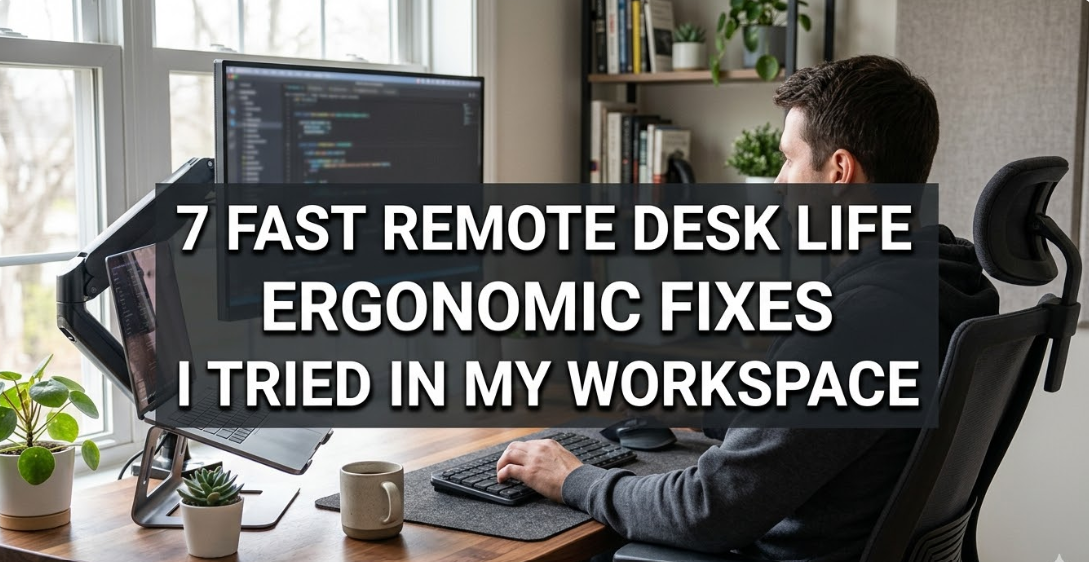
7 Pandemic Remote Desk Life Ergonomic Fixes I Tried in My Workspace
My Back Was Screaming. Here’s What I Did.
I work from home. And for the first two years I didn’t have much of a view on how my setup worked. It had a chair, a desk, and a laptop. That felt like enough.
It wasn’t.
By month eight, I would have a stiff neck every afternoon. My wrists hurt after long hours of typing. My lower back hurt so much some nights that I could not concentrate on anything else. I blamed stress, poor sleep, or too much screen time.
But the actual trouble was a more basic one. My ergonomic adaptations to my remote desk life were zero.
Not a single step toward making my workspace actually work for my body.
So I started experimenting. Over a few months, I attempted seven different changes. Some cost nothing. Some cost a little. Still, all of them moved the needle.
This article explains precisely what I did, why it worked, and how you can do the same — quickly and without shelling out big bucks.
Here’s Why Ergonomics Really Matter for Remote Workers
Before we get into the fixes, let’s briefly talk about why you should care.
If you work from an office, there’s always someone who sets up the chairs and desks to some minimum standard. You’re on your own when you work from home.
Most people who work from home can be found slumped on a couch, hunching over a kitchen table, or looking down at a laptop in their lap. And those little adjustments add up to big real-world problems over hours.
Here’s what bad workspace ergonomics can do:
- Chronic neck and shoulder tension
- Back pain and disc problems
- Wrist and forearm strain (progressing towards carpal tunnel)
- Eye fatigue and persistent headaches
- Poor circulation in legs and hips
- Lack of focus and more mental exhaustion
The good news? A lot of these problems stem from only a handful of easily resolved issues. You don’t need a $1,500 chair or a standing desk to make significant progress. You need the right adjustments.
Fix #1 — Elevate Your Laptop Screen With a Stand
This was the first thing I tweaked and it had the fastest, biggest effect.
A laptop resting flat on a desk has its screen far below your eye level. That means you are spending hours looking down. Your neck muscles support that position all day long. Over time, that gives rise to a condition some refer to as “tech neck” — chronic stiffness and pain in the upper spine.
What I Did
I purchased a simple aluminum laptop stand for $22. It elevated my screen so that the top of the display was about eye level. As soon as I used it, my shoulders dropped automatically. I was no longer craning my neck forward.
The rule of thumb is this: when sitting straight with your eyes looking ahead, the top third of the screen should be in your line of vision. If you have to look down to see your screen, it’s too low.
The Trade-Off
The laptop is now in a raised position where you can no longer comfortably use the keyboard on it. That’s actually good — and it leads to Fix #2.
Cost: $15–$60 | Time to set up: 5 minutes | Pain it fixes: Neck stiffness, upper back tightness, forward head posture
Fix #2 — Use a Separate Keyboard and Mouse
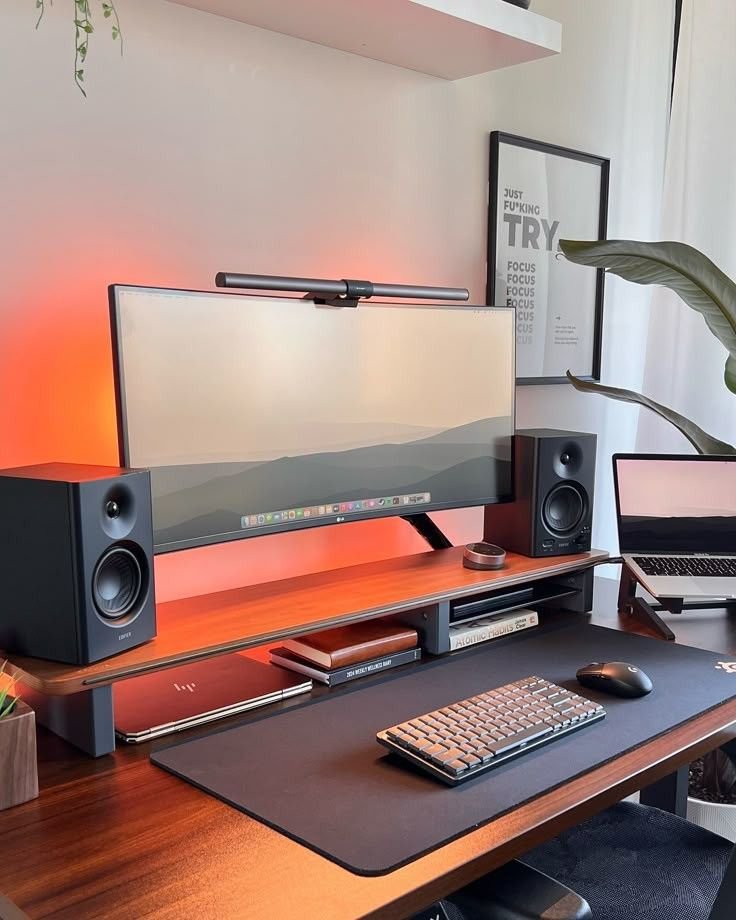
Now that your laptop’s up on a stand, you will need an external keyboard and mouse. This change transforms your laptop into a workstation.
If the keyboard is integrated into the laptop while the screen is angled upwards, you’d have to reach up to type. That is as bad as looking down. An external keyboard puts it at elbow height, as it should be.
The Right Position
Your elbows should be at about a 90-degree angle. Your forearms should be approximately parallel to the floor. Your wrists shouldn’t be bent up or down while typing.
Most people type with hands slightly extended (bent back). After a few hours of this, the tendons in your forearm begin to complain.
I switched to a low-profile wireless keyboard and positioned it so my arms hung naturally. Within a week, the forearm pain I had been ignoring for months was mostly gone.
What to Look For
You don’t need a fancy, expensive ergonomic keyboard to get started. A simple flat wireless keyboard that costs less than $30 works great. If wrist pain continues to be an issue, you might want to look into a split or tented keyboard design later.
Cost: $20–$120 | Time to set up: 10 minutes | Pain it fixes: Wrist strain, forearm ache, shoulder tension from reaching
Fix #3 — Adjust Your Chair’s Lumbar Support
This one is sneaky. You can have a decent chair and still sit in a way that ruins your lower back.
The lumbar region is the curve in your lower spine. When you sit unsupported, that curve flattens out. Your discs carry uneven pressure. For hours, your lower back muscles tighten up, desperate to keep everything together. That’s the same ache you feel by mid-afternoon.
What I Tried First
My chair had a lumbar support knob I had never adjusted. I spent five minutes putting it to actual use — bringing it up and down until it pressed gently into the natural curve of my lower back. Just that small tweak eliminated the bulk of my afternoon back pain.
If your chair doesn’t have lumbar support, you can also place a rolled-up towel or small pillow horizontally at the small of your back — it does the same job. I tested this with a dining chair. It actually works.
The Bigger Sitting Mistake
Most people are also sitting too far forward in their chair, which means they end up leaning forward to reach the keyboard. Sit with your hips touching the back of the chair. Your back should feel the support in its natural position. Your feet should reach the ground comfortably.
If your feet don’t touch the ground, your chair is too high — which also introduces tension in the thighs and hips.
Cost: $0 (if adjusting a chair you own) or $15–$50 for a lumbar pillow | Time to fix: 5 minutes | Pain it fixes: Lower back pain, hip tightness, afternoon fatigue
Fix #4 — Get Your Monitor Distance Right
This one surprised me. For years I had my screen too close.
If your monitor is too close, it makes your eyes work harder to focus. The ciliary muscles within your eye tighten to provide sharpness. Hold that contraction for hours and you’re stuck with sore, tired, dry eyes — and often a headache behind your forehead.
The Arm’s-Length Rule
The simplest guide: sit comfortably in your chair and reach one arm forward. Your fingertips should just graze the screen. That places the monitor approximately 50–70 cm away from your eyes, which is generally considered an appropriate range for most display sizes.
I moved my monitor back 10 cm. The first day felt a little strange. By day two, the afternoon eye strain I had resigned myself to was markedly decreased.
Screen Height Reminder
As you’re adjusting distance, check height again. Your screen should be at or just below eye level. Looking up at a screen causes the same neck strain as looking down — just in the opposite direction.
Cost: $0 | Time to fix: 2 minutes | Pain it fixes: Eye fatigue, headaches, dry eye sensation
Fix #5 — Address Your Foot and Hip Positioning
I never gave the position of my feet a second thought until a physiotherapist mentioned it in passing. It turns out your feet have a direct line to your hips and lower back.
When your feet dangle — even a little bit — your thigh muscles remain partially contracted from the moment you sit down to the moment you get up. That pulls on your hips. And that pulls on your lower back. It adds to the fatigue cascade that makes working long hours harder than it needs to be.
The Simple Check
Sit properly in your chair. Your hips, knees, and ankles should all be bent to about 90 degrees. Your feet should be flat on the floor — not tiptoeing, not dangling.
If not, fix the floor. A footrest — something simple and inexpensive ($10–$30) — works very well. I used a hardback book for two weeks while I decided what to buy. It worked just fine.
One More Hip Trick
Avoid sitting cross-legged. It feels natural, but it rotates the pelvis unevenly and introduces imbalances into the lower back over time. Feet flat, hips level.
Cost: $0–$30 | Time to fix: 5 minutes | Pain it fixes: Hip tension, leg fatigue, lower back strain
Fix #6 — Fix Your Lighting Before It Fixes You
I assumed eye strain was simply a side effect of working at a screen. I was wrong.
Much of the eye fatigue that comes from screens has less to do with the screen itself than the way it interacts with the ambient light in the room.
The Two Main Problems
Glare occurs when a light source — a window, a lamp, an overhead fixture — hits directly on your screen or into your eyes. Your brain attempts to compensate by slightly squinting and boosting contrast detection. After hours, that’s exhausting.
High contrast between a bright screen and a dark room is equally tiring. Your eyes continually re-focus on the much brighter screen as they dart back and forth between it and the rest of the room.
What I Changed
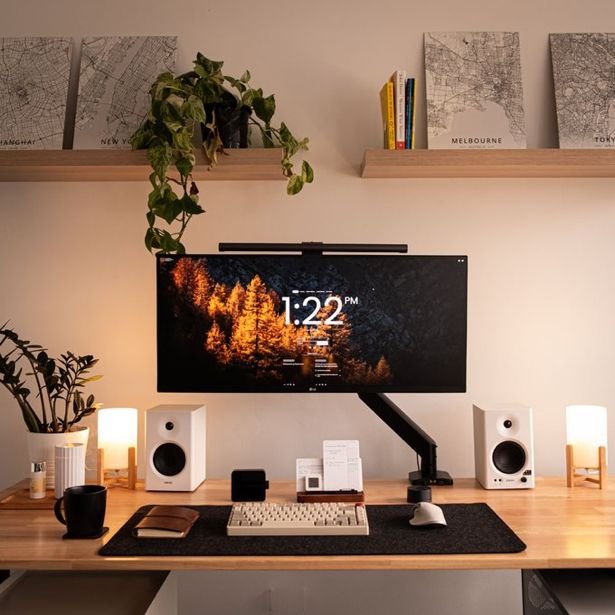
I repositioned my desk so the window was to the side rather than directly in front or behind me. That eliminated the primary glare within seconds.
I also added a small desk lamp to bring the ambient room brightness closer to my screen. This reduced the contrast gap considerably.
Finally, I enabled night mode (warm colour temperature) after 5 PM. That reduces blue light output, which research links to disrupted sleep when you’re exposed in the evening.
Cost: $0–$40 | Time to fix: 15–30 minutes | Pain it fixes: Eye strain, headaches, evening sleep quality
Fix #7 — Build Movement Breaks Into Your Day
This last fix costs nothing. It was also one of the most visible changes in how I felt at the end of each workday.
The human body was not made to be sedentary for eight hours. Static posture — even ideal posture — makes muscle fatigue, joint stiffness, diminished circulation, and mental fogginess inevitable. Movement is not a distraction from getting work done. It is a condition for continued productive work.
The 20-20-20 Rule for Eyes
Every 20 minutes, stare at something 20 feet away for at least 20 seconds. This relaxes the focusing muscles in your eye. It’s simple and it works. I set a phone timer. Within a week, evening eye fatigue decreased substantially.
The 50-10 Sitting Rule
For every 50 minutes of sitting, get up for 10 minutes or more. Walk to get water. Do a slow neck roll. Stretch your hip flexors. Step outside if you can.
You don’t need a standing desk. All you have to do is stop treating sitting as the default and movement as the exception.
Micro-Movements During Work
Even small shifts count. Change your position every 20–30 minutes. Uncross your legs. Roll your shoulders back. Take a deep breath, expanding the chest. These little resets prevent the accumulation of tension over a long day.
Cost: $0 | Time needed: 10 minutes per hour | Pain it fixes: Full-body stiffness, eye strain, afternoon energy crashes, poor circulation
All 7 Fixes Combined — The Order That Worked for Me
Here’s how I’d suggest rolling these out if you’re starting from zero.
Start with the free changes. Reposition your monitor. Adjust the lumbar knob on your chair. Move your desk away from window glare. Start movement breaks — set a timer. These cost nothing and require less than an hour of your time in total.
Then add the laptop stand and external keyboard. Combined, they are the single biggest improvement to posture for laptop workers. For $40–$80 total, they transform your setup.
Finally, address feet and lighting. A footrest if you need one. A desk lamp for ambient balance.
You don’t have to do all seven in a day. Even 2 or 3 of these adjustments will yield a significant change by the end of Week One.
What I Noticed After 30 Days of These Remote Desk Life Ergonomic Fixes
A full month into these changes, here’s what actually moved:
My afternoon neck stiffness — the very thing I’d come to accept as normal — mostly vanished. The wrist pain I had attributed to “too much typing” went away once the keyboard was properly placed. My eye fatigue eased enough that I stopped needing ibuprofen for end-of-day headaches.
The biggest change was mental. It’s much easier to focus when your body isn’t battling physical discomfort. I was accomplishing more in less time, simply by not spending mental energy managing pain.
None of this required a big investment or a home office overhaul. It involved noticing how my body and workspace were relating to each other — and making small, intentional adjustments. If you want to go deeper on building a sustainable remote setup, Remote Desk Life is a great resource dedicated entirely to helping remote workers work smarter and feel better at their desks.
FAQs: Ergonomic Fixes for Remote Desk Life
Q: Do I need an expensive ergonomic chair to fix my back pain? Not necessarily. Many posture issues stem from how you sit in a chair, not the chair itself. Adjusting lumbar support, seat height, and foot placement can solve a lot of lower back pain even in a basic chair. A lumbar cushion at $15–$30 really helps.
Q: Is a standing desk worth it for remote workers? It can be useful, but it’s not necessary as a starting point. What matters most is varying between sitting and standing, not standing all day. If funds are limited, prioritise the seven fixes in this article first. You’ll get 80% of the benefit for 20% of the cost.
Q: How quickly will I notice changes from ergonomic adjustments? Most people feel a difference within the first two or three days — especially from adjusting screen height and keyboard placement. Deeper muscular relief takes one to two weeks, provided you maintain consistent positioning.
Q: What’s the single most important ergonomic fix for a laptop user? Raising the screen to eye level with a stand and pairing it with an external keyboard. This one combination addresses neck strain, shoulder tension, and wrist position all at once. If you’re only going to do one thing, do this.
Q: Can bad ergonomics affect productivity, not just physical health? Yes. Studies consistently find that physical discomfort directly affects cognitive performance. Pain and fatigue drain the same mental resources you draw on to concentrate. Ergonomic fixes that reduce physical discomfort have a measurable positive effect on focus, accuracy, and sustained output.
Q: If I’ve already been in pain for months or years, is it too late? It’s never too late to improve. The body is very responsive to reduced strain, even after long periods of poor posture. Long-standing problems may also benefit from a visit to a physiotherapist in addition to workspace changes — but the ergonomic tweaks here are excellent first steps regardless.
Q: Does high screen brightness damage your eyes when working remotely? It contributes to contrast fatigue — screens set too bright relative to the surrounding room are tiring. A good rule of thumb is to match your screen brightness roughly to the ambient light in your room. Many devices have auto-brightness settings that handle this automatically.
The Bottom Line on Ergonomic Fixes for Remote Workers
For millions of people, remote work is here to stay. The workspace challenges it brings are real — and also solvable.
The remote desk life ergonomic fixes in this article are not theory. I tested each of them in my own workspace. Each one addressed a specific, concrete problem. Combined, they changed how I felt at the end of a full workday.
Start small. Choose two or three changes today. Listen to how your body responds over the coming week. Then layer in the rest.
Your workspace should serve you — not drain you. It takes just a few intentional tweaks to get there.
Have you implemented any of these ergonomic fixes in your workspace? Which did you find most helpful?