Meta Description: 9 life-changing remote desk life ergonomic tips that will turn your home office from a pain point to a productivity haven — every remote worker should have these down.
9 Powerful Remote Desk Life Ergonomic Tips for Home Office Workers
It sounds like a dream, working from home. No commute. No dress code. Coffee whenever you want.
But there’s a hidden cost.
Millions of remote workers are suffering from neck pain, back aches, eye strain, and wrist issues — all because their home office setup was never intended for hours of work.
That’s where remote desk life ergonomic tips come into play.
Ergonomics is just the science of arranging your environment so that your body doesn’t hurt. Done right, it helps you work longer, feel better, and avoid injuries that can plague you for years.
In this guide, you will learn 9 practical, proven tips anyone can use — and no fancy equipment needed.
Why Your Home Office Setup Might Be Hurting You
Before getting into the tips, it’s useful to know what’s actually going on with your body.
When you work at a desk without good ergonomics, your spine bends in unusual angles. Your shoulders round forward. Your neck tilts down. These little positions accumulate over hours and hours of labor.
Musculoskeletal disorders — conditions like back pain, carpal tunnel, and headaches — are one of the most common reasons why remote workers take sick days, research shows.
The good news? Many of these problems are preventable.
| Common Problem | Root Cause | Fix |
|---|---|---|
| Neck pain | Monitor too low | Raise screen to eye level |
| Lower back ache | No lumbar support | Adjust chair or add cushion |
| Eye strain | Screen glare or distance | Position monitor 20–30 inches away |
| Wrist pain | Keyboard angle too high | Lower keyboard, use wrist rest |
| Headaches | Poor lighting | Add ambient light, reduce screen glare |
Let’s get into the tips.
Tip 1 — Get Your Chair Right First
Your chair is the building block of all things.
If your chair is not right, no other adjustment will fully work. Regardless of how ideal your monitor position is, discomfort will still occur.
How to Set Up the Right Chair
Lean all the way back in your seat. Your lower back should make contact with the backrest — not dangle in empty air.
Your feet should be flat on the floor. If they dangle, use a footrest. A folded blanket or a thick book works perfectly well.
Your knees should be at about a 90-degree angle. Not bent any further, not sticking out straight.
Your hips should be even with — or just slightly above — your knees. That relieves some of the pressure on your lower spine.
Most office chairs allow for adjustment in seat height, backrest angle, and armrest position. Spend 10 minutes getting all three tuned in. That 10 minutes might spare you years of back pain.
The Lumbar Support Trick
The lower back has a natural inward curve. Most chairs do not accommodate that well.
Roll up a small towel and position it between your lower back and the seat of the chair. This fills the gap and maintains your spine in a neutral position. It seems so simple that it shouldn’t work, but it really does.
Tip 2 — Position Your Monitor at the Right Height and Distance
Your monitor may be the single biggest factor in neck and eye health.
Most people sit a laptop on a desk and look down at it all day. That is a recipe for neck pain.
The Eye-Level Rule
The top of your screen should sit at or just below eye level. This way you can focus your gaze in the center of the screen without tilting up or down.
If you are working from a laptop, either use a laptop stand or just stack some thick books under it. Connect an external keyboard and mouse.
How Far Away Should Your Monitor Be?
Sit about 20 to 30 inches from your monitor. That’s roughly arm’s length.
If you find that you are leaning in to read, the font is too small — make it bigger and do not lean closer.
| Monitor Position | Suggested Setting |
|---|---|
| Height | Top of screen at eye level |
| Distance | 20–30 inches from eyes |
| Tilt | Slightly back (10–20 degrees) |
| Side angle | Straight ahead, no twisting |
Dual Monitor Setup Tip
If you use two monitors, put the one you use most directly in front of you. The secondary monitor goes off to the side.
If you use both equally, center them so that the split between the two screens is right in front of your nose.
Tip 3 — Ensure the Correct Height of Your Keyboard and Mouse
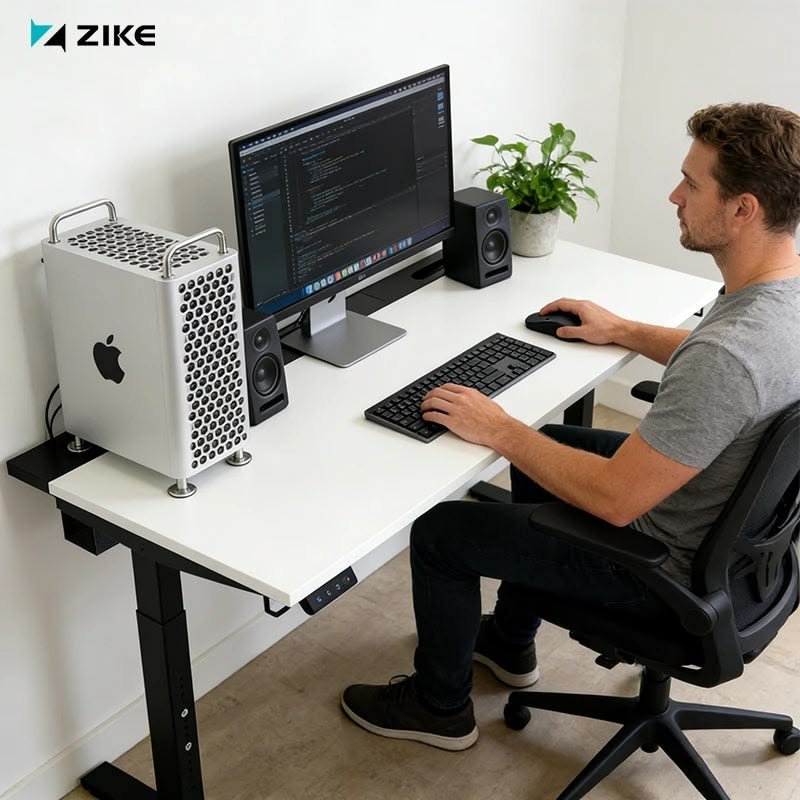
Your keyboard and mouse position directly impacts your wrists, elbows, and shoulders.
The idea is to keep your arms loose and your wrists straight.
Where Should Your Keyboard Sit?
When typing, your elbows should be at approximately a 90-degree angle. Your upper arms should hang naturally at the sides — not extended forward or pulled back.
When you are typing, your wrists should be flat or very slightly downward. Never bent upward. Having wrists bent upward for long periods is one of the main causes of carpal tunnel syndrome.
If your desk is too tall, your shoulders will hunch up. If it’s too low, your back will round forward.
The Mouse Matters Too
Keep your mouse close to the keyboard. You shouldn’t need to stretch your arm out to reach it.
If you’re reaching far across your desk for your mouse repeatedly all day, you’re gradually overworking your shoulder and rotator cuff.
If you suffer from wrist strain, it might be worth looking at a vertical mouse. It places your hand in a more natural, handshake position.
Tip 4 — Stand Up — The 20-8-2 Rule
No matter how correct your posture, sitting all day is tough on your body.
Your body was built to move. Prolonged sitting slows circulation, tightens the hip flexors, and creates continual pressure on your spinal discs.
What Is the 20-8-2 Rule?
For every 30 minutes at your desk, do the following:
- 20 minutes sitting with good posture
- 8 minutes standing (at a standing desk or just standing nearby)
- 2 minutes moving around — walking to get water, stretching, pacing
This pattern maintains blood flow and prevents the deep muscle fatigue that arises from holding any single position too long.
Standing Desks on a Budget
Full electric standing desks tend to be expensive. But you don’t need one.
A standing desk converter rests on top of your existing desk and lifts your monitor and keyboard. They’re far cheaper and just as effective.
Even simpler: stack boxes or thick books and stand at a kitchen counter or high shelf for part of your day.
The secret is variety — not a fancy desk.
Tip 5 — The 20-20-20 Rule for Your Eyes
Eye strain is one of the most common complaints from remote workers.
Staring at a screen causes your eyes to blink less. This leads to dryness, blurriness, and headaches.
How the 20-20-20 Rule Works
Every 20 minutes, gaze at something 20 feet away for a minimum of 20 seconds.
This loosens the focusing muscles in your eyes. It’s the easiest, most effective way to limit digital eye strain.
If you tend to get absorbed in work and forget, set a timer on your phone.
According to the American Optometric Association, following this simple rule is one of the most recommended steps to reduce computer vision syndrome in people who spend long hours at a screen.
Other Eye-Saving Habits
- Adjust screen brightness to match your room’s ambient lighting.
- Turn on night mode or a blue-light filter in the evenings to ease strain before going to sleep.
- Clean your screen regularly. A dusty or smudged screen forces your eyes to work harder.
- Blink intentionally — it sounds odd, but actively reminding yourself to blink helps with dryness.
Tip 6 — Set Up Your Lighting Like a Pro
Inadequate lighting leads to more problems than one might expect.
Squinting against glare or struggling to see in low light places stress on your eyes, forehead, and neck.
Natural Light: Friend or Foe?
Natural light is wonderful for mood and energy — unless it’s streaming directly onto your screen.
Position yourself so that windows are to the side of your monitor, not directly behind it or in front of you.
Light shining from behind you hits your screen and creates glare. Light arriving from in front of you beams directly into your eyes.
Setting Up Artificial Lighting
If the natural light in your workspace isn’t ideal, use a combination of:
- Ambient lighting — a floor lamp or ceiling light that brightens the entire room evenly
- Task lighting — a desk lamp aimed at your work surface, not directly at the screen
Do not work in a dark room relying only on your monitor for light. The high contrast between a bright screen and a dark room is exhausting for your eyes.
A bias light — a strip of soft LED lights placed behind your monitor — dramatically reduces this contrast and is very affordable.
Tip 7 — Keep Your Most-Used Items Within Easy Reach
This one seems obvious but is almost universally ignored.
Consider how many times a day you reach for your phone, a pen, a notepad, your coffee. Every awkward reach — arm outstretched, body contorted — adds tiny doses of stress to your joints.
The “Primary Zone” and “Secondary Zone”
Divide your desk into zones:
- Primary zone: Everything you can grab with your elbows pinned to your sides. This is where your keyboard, mouse, and most-used items live.
- Secondary zone: Things you access a couple of times each day. These can sit a little further back or to the side.
- Rarely used zone: Stuff that belongs in drawers or on shelves.
Your phone, in particular, should be somewhere you don’t need to twist your neck to see. Either in your direct line of sight or face-down so you’re not constantly craning to check notifications.
A monitor arm or adjustable monitor stand also clears up desk space, allowing you to push items closer and minimize unnecessary reaches.
If you’re looking for more practical guidance on structuring a productive remote setup, Remote Desk Life covers everything from workspace organization to daily habits that help you work smarter from home.
Tip 8 — Take Micro-Breaks That Actually Work
“Take breaks” is advice everybody gives but nobody explains well.
A micro-break isn’t scrolling your phone for 5 minutes. That keeps your eyes and fingers busy in a different way but does not rest them.
What a Real Micro-Break Looks Like
- Get up and walk to another room, even briefly.
- Gaze out of a window at something far away.
- Do 30 seconds of shoulder rolls and neck stretches.
- Get a glass of water — it forces you to stand up and move.
The point is to change your physical state, not just your screen.
A Simple Stretching Routine for Desk Workers
Do these once every hour:
Neck stretch — gently tilt your head to one side, hold for 15 seconds, repeat on the other side.
Shoulder rolls — roll both shoulders backward in large circles, 10 reps.
Wrist stretch — extend your arm, lightly pull fingers back toward you with the opposite hand. Hold 10 seconds.
Hip flexor stretch — stand and step one foot forward into a gentle lunge. Hold 20 seconds each side.
These take under two minutes and can truly make a difference by the end of the day.
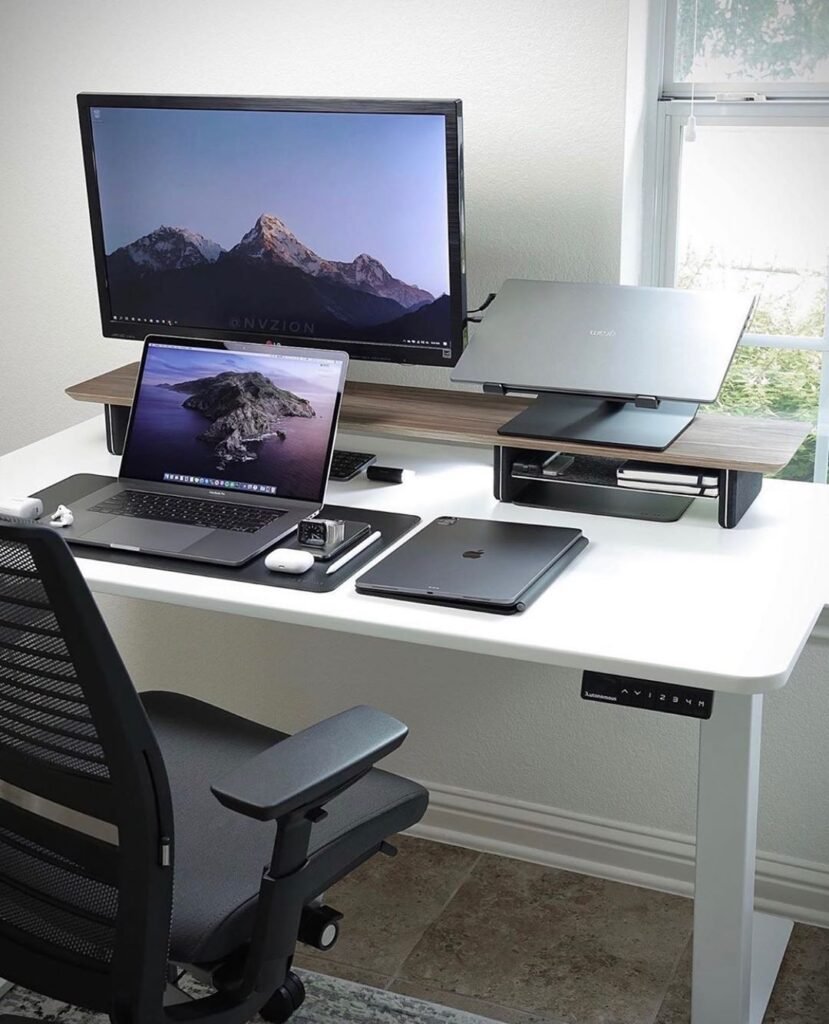
Tip 9 — Declutter In Person and Virtually
This final tip pulls everything together.
A messy desk causes mental stress and requires uncomfortable stretching. A cluttered desktop — all those open tabs and notifications — is a source of mental overload that leads you to hunch forward and tense up without realizing it.
Desk Organization Basics
- Keep cables managed and out of your way. Cable clips are inexpensive and effective.
- Use a monitor stand with built-in storage for small items.
- Remove from your desk anything you don’t actively use during the workday.
Digital Organization for Better Posture
This sounds strange, but it works.
When your screen is a mess — dozens of browser tabs, cluttered desktop icons, constant notifications — your body unconsciously leans in closer, squints more, and holds tension in the jaw and shoulders.
Simple fixes:
- Close all tabs except the ones you’re actively using.
- Turn off non-essential notifications during deep work.
- Keep a clean desktop with no icons cluttering your view.
A calm screen leads to a calmer, more relaxed posture.
Quick-Reference Summary Table
| Tip | What to Do | Why It Matters |
|---|---|---|
| Chair setup | Feet flat, back supported, knees at 90° | Prevents lower back and hip pain |
| Monitor height | Top of screen at eye level | Reduces neck strain |
| Keyboard position | Elbows at 90°, wrists flat | Prevents wrist and shoulder issues |
| 20-8-2 rule | Sit, stand, move in 30-min cycles | Prevents damage from prolonged sitting |
| 20-20-20 rule | Eyes on a distant object every 20 min | Reduces eye strain and headaches |
| Desk lighting | Side lighting, no glare | Reduces eye fatigue |
| Desk organization | Primary/secondary zones | Reduces awkward reaching |
| Micro-breaks | Stand, stretch, move every hour | Prevents muscle fatigue |
| Digital environment | Clean screen, fewer distractions | Reduces tension and mental load |
Remote Desk Life Ergonomic Tips — FAQs
Q: Do I have to spend a lot of money to set up an ergonomic home office?
Not at all. Many of the best changes are free — such as adjusting your chair height, moving your monitor, or following the 20-20-20 rule. Stack some books under your monitor. Roll up a towel for lumbar support. Start with what you have.
Q: How long does it take to feel the benefits of better ergonomics?
Many people notice less tension and fatigue after just a few days of implementing changes. Chronic pain from years of bad posture may take longer to improve, but you should begin to feel the difference fairly quickly.
Q: Is a standing desk really worth it?
A standing desk helps — but only if you alternate it with sitting. Standing all day is exhausting too. The real benefit is the ability to vary your position throughout the day. A standing desk converter is a low-cost way to enjoy that benefit.
Q: What is the best sitting posture for long work sessions?
Sit with your feet flat on the floor (or a footrest), knees at 90 degrees, lower back supported, shoulders relaxed (not raised), and ears aligned directly above your shoulders — not jutting forward.
Q: How can I tell if my monitor is at the right height?
Close your eyes, let your head relax naturally, then open them. Wherever your eyes naturally land is your ideal monitor height. If you’re looking down at the screen, it’s too low. If you’re looking up, it’s too high.
Q: Can ergonomics help with headaches from screen work?
Yes. Headaches from screen work are often caused by eye strain, poor lighting, and neck tension — all issues that ergonomics directly addresses. The 20-20-20 rule and proper monitor positioning are the fastest ways to relieve screen-related headaches.
Q: Is it okay to work from a couch or bed occasionally?
Occasionally, yes. However, regularly working from soft surfaces without back support leads to poor posture that is difficult to correct. If you’re going to work away from your desk setup, try to keep your screen elevated and support your lower back with a pillow.
Wrapping It All Up
Your home office doesn’t have to be a source of daily aches and discomfort.
These remote desk life ergonomic tips are not about perfection — they’re about small, consistent changes that add up to big results over time. Start with just one or two. Adjust your chair. Raise your monitor. Try the 20-20-20 rule.
Your body does an enormous amount of work every single day. Give it an environment that facilitates that work.
A better setup doesn’t just benefit your body — it benefits your focus, your energy, and the quality of work you produce.