11 Powerful Remote Desk Life Ergonomic Essentials for Remote Workers
When I made the jump to full-time remote work a few years ago, it felt like a dream come true at first. No more crowded trains or stuffy office air. I could brew coffee in my own kitchen and dive straight into emails without the hassle of a commute. But after a few months of parking myself at the kitchen table with just my laptop propped on a stack of books, reality hit hard. My neck started throbbing by lunchtime, my wrists would tingle after long typing sessions, and that dull ache in my lower back never seemed to fade. I figured it was just part of the adjustment, but then I started hearing the same complaints from friends and colleagues scattered across different time zones. One buddy in Lahore told me his shoulders felt locked up after video calls, another mentioned constant headaches from staring at a dim screen.
Turns out, this isn’t some rare issue. Surveys from around the shift to remote setups showed that over 40 percent of people dealing with home offices reported new or worsening pain in their back, neck, and shoulders. In some studies, nearly 61 percent of remote workers flagged musculoskeletal discomfort, with the neck hitting hardest at around 50 percent of cases, followed closely by the upper and lower back. The problem? Offices used to have teams tweaking chairs and desks for you, but at home, most of us wing it with whatever furniture is handy. Dining tables that sit too high, sofas that swallow your posture whole, laptops forcing your head down like you’re reading a tiny newspaper. Over time, those little compromises add up to real strain on muscles, tendons, and even your focus. Poor ergonomics doesn’t just hurt your body; it chips away at productivity, making you slower, more distracted, and honestly, less happy in the role you once loved.
The good news is you can fix this without gutting your budget or turning your spare room into a sci-fi lab. I’ve spent years tweaking my own setup, testing what actually works through trial and error (and a fair bit of reading on neutral posture from places like Cornell and OSHA guidelines). What started as desperate fixes became a solid system that keeps me going strong through eight-hour days without the old complaints. That’s why I put together this list of 11 powerful essentials tailored for remote desk life. These aren’t random gadgets; each one targets a specific pain point that sneaks up on home workers—slouching, wrist twists, eye fatigue, static sitting, you name it. I’ll walk through what makes each one essential, how to pick and position it right, real-world tips that saved my back (and sanity), and the mistakes I see people repeat. Some are budget-friendly swaps you can grab tomorrow, others are worth saving for if you’re in it long-term. By the end, you’ll have a complete game plan to make your remote desk support you instead of fighting you. No fluff, just stuff that delivers.
Let’s kick things off with the absolute foundation.
Essential 1: The Ergonomic Office Chair
Your chair is where everything starts and ends in a remote setup. Spend eight hours a day in the wrong one, and you’re basically signing up for a slow build-up of tension that radiates from your tailbone up through your shoulders. I learned this the hard way after sticking with a basic dining chair for too long. My lower back would scream by 3 p.m., and standing up felt like uncurling from a pretzel. Switching to a proper ergonomic model changed the game overnight.
What makes a chair powerful isn’t fancy leather or racing stripes—it’s adjustability. You want one where the height lets your feet sit flat on the floor with your thighs roughly parallel to the ground and knees at about a 90-degree angle. The seat depth should support your thighs without pressing into the backs of your knees, and the backrest needs solid lumbar support that curves into the natural S-shape of your spine. Armrests are gold when they adjust up, down, forward, and back so your elbows sit at 90 degrees and your forearms rest lightly without shrugging your shoulders. Mesh backs help with airflow if you run hot like I do in Lahore summers, and a bit of recline (even 10-15 degrees) lets you shift without losing support.
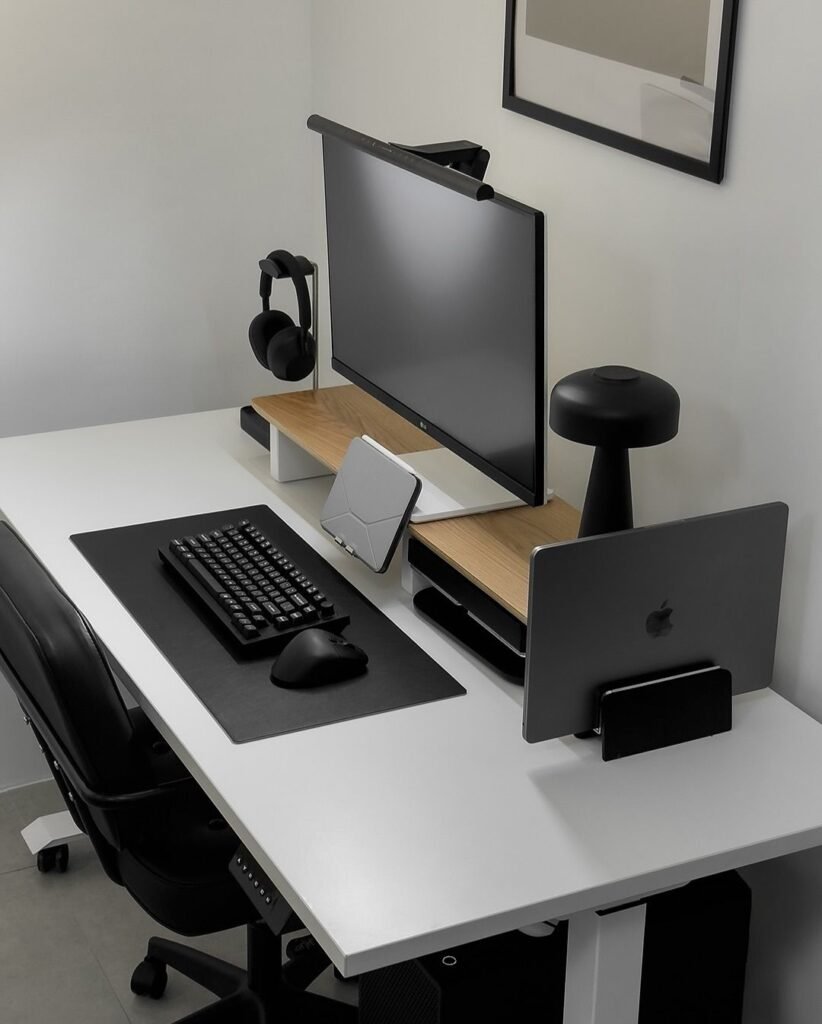
The science here is straightforward: a good chair keeps you in neutral posture, where your joints line up naturally and muscles don’t have to overwork. Studies tie bad chairs straight to that spike in lower back pain among remote folks. Without lumbar curve support, your spine compresses, discs get pinched, and inflammation builds. I’ve had friends swear by budget mesh options under a couple hundred bucks that still hit the key adjustments, while others went premium and never looked back. Test it by sitting as you normally would after a long day—does it cradle you or force adjustments every hour?
Tips from my setup: Start your day by tweaking the chair first, before touching the desk. If your current one lacks lumbar, roll up a small towel or grab a cheap cushion. I added a footrest when my desk height didn’t match perfectly, and it stopped my legs from dangling. Common mistake? Buying based on looks alone or ignoring armrests. People crank the seat too high thinking it looks “pro,” but then their shoulders hike up and wrists bend. Take five minutes every morning to reset it based on how you feel that day. My back pain dropped dramatically once I stopped treating the chair like an afterthought.
Essential 2: The Height-Adjustable Standing Desk
Sitting all day is the silent killer for remote workers, but a static desk locks you in. That’s why a sit-stand option ranks so high on this list. I resisted at first—seemed like overkill—but after my hips started aching from endless chair time, I converted and never went back. The ability to switch positions every hour or so keeps blood flowing, reduces pressure on your lower back, and even boosts energy for afternoon slumps.
Look for one with smooth electric motors (dual ones are quieter and more stable), at least 200 pounds capacity so it doesn’t wobble under monitors and laptops, and memory presets to jump between your sitting and standing heights instantly. Sizes matter: 48 inches wide for simple laptop-plus-monitor setups, up to 72 for dual screens and peripherals. Cable management built in is a bonus—nothing kills the flow like tripping over cords mid-rise.
Positioning is key. When sitting, your elbows should hit 90 degrees with forearms parallel to the surface and wrists straight. Standing, keep the same elbow angle so you’re not hunching or reaching. The “20-8-2” rhythm from ergonomics pros works wonders: sit 20 minutes, stand 8, move and stretch 2. I started slow, adding 15-minute standing blocks, and built up. My circulation improved, and that afternoon fog lifted noticeably.
Why powerful? Prolonged sitting compresses your spine and slows metabolism; alternating cuts that risk while fighting the neck strain from fixed postures. Budget converters attach to existing desks if you’re not ready to replace everything. Pitfall I see often: setting it too high when standing, which strains shoulders, or forgetting to move. Pair it with the right mat (more on that later) and you’ll stand comfortably longer. My productivity jumped because I wasn’t fighting stiffness anymore.
Essential 3: The Adjustable Monitor Arm
Staring down at a laptop screen or a monitor perched on books forces your head forward, pulling on neck muscles like crazy. That’s “tech neck,” and it’s rampant among remote workers. An adjustable arm fixes it by letting you float the screen exactly where it belongs—top of the display at or just below eye level, about an arm’s length away, straight ahead.
I mounted mine after months of craning, and the relief in my upper back and shoulders was immediate. Arms clamp to the desk edge or use grommets for a clean look, supporting 15- to 34-inch screens easily. Look for smooth gas-spring or counterbalance models that move with a light touch—tilt, swivel, height, and depth all adjustable. Dual arms for side-by-side monitors angle them in a gentle V so your primary sits center and the second is a quick glance away.
Setup rule: Eyes gaze slightly downward to the screen top to minimize strain. For laptops, this pairs perfectly with a riser. The power comes from eliminating that forward head tilt, which can add 20-30 pounds of pressure on your neck over time. Research links poor monitor height directly to headaches and shoulder knots in home offices. I keep mine at sitting height most days but raise it slightly when standing. Mistake? Leaving it fixed too low or too far. Test by sitting back and checking if you can read without leaning. Add a cheap document holder next to it if you reference papers—stops the down-and-up head bobbing that adds fatigue.
Essential 4: The Ergonomic Keyboard
Standard flat keyboards force your wrists up or out, setting the stage for repetitive strain that builds into tingling or worse. An ergonomic one keeps everything neutral: wrists straight, forearms parallel, shoulders relaxed. I switched to a split or tented model after my right wrist started complaining during heavy email days, and typing felt effortless again.
Options range from compact tenkeyless versions (no number pad means the mouse sits closer, cutting shoulder reach) to full split designs with negative tilt so the front edge lifts slightly. Mechanical switches feel satisfying without clack overload, and wireless ones free up desk space. Position it so elbows stay at 90 degrees—sometimes a tray drops it below desk level if your surface is high.
The real strength? It prevents the pronation twist that strains forearm tendons, a top culprit in remote RSI complaints. Keep it centered in front of you, not off to one side. I pair mine with a slight negative slope to avoid upward wrist bends. Common error: flipping up the little feet on regular keyboards, which worsens the angle. Start with a low-profile option if you’re used to chiclet keys. My typing speed held steady while pain vanished—proof it’s not about speed but sustainable posture.
Essential 5: The Vertical or Centered Ergonomic Mouse
Mice are sneaky villains. That palm-down grip twists your forearm for hours, leading to outer elbow aches and wrist issues that creep up slowly. A vertical mouse or centered roller style keeps your hand in a handshake position, wrist neutral and arm relaxed at your side. I made the switch after noticing forearm tightness during design work, and it felt weird for a day before becoming second nature.
Vertical models angle your grip naturally; roller bars sit in front of the keyboard for zero side reach. Wireless with long battery life works best for remote flexibility. Size to your hand—too small and you grip tight, too big and you strain. Place it right next to the keyboard so shoulders stay down and relaxed.
Power lies in slashing that constant pronation, which studies tie to higher RSI rates in computer-heavy roles. I use one with programmable buttons for common shortcuts, cutting extra movements. Tip: Ease in with short sessions if it feels odd at first. Mistake people make? Sticking with a basic mouse because “it’s what I’m used to.” My shoulder tension on the mouse side dropped away completely once I committed.
Essential 6: The Laptop Riser or Stand
Laptops tempt us into the worst posture—screen low, keyboard high, head bowed like a question mark. A riser lifts the display to eye level while you pair it with an external keyboard and mouse below. I use a simple aluminum or bamboo one that angles just right, and it turned my portable machine into a proper workstation.
Adjustable height is ideal, raising 5-7 inches or more. Some have built-in fans for heat, others fold flat for travel. Always add peripherals below so wrists stay happy. For dual use, it frees the desk when you’re not docked.
This essential fights “laptop neck” head-on, reducing the forward tilt that strains cervical spine. Remote workers using laptops full-time report higher neck pain without one. My setup: riser for screen, external everything else. Don’t skip the keyboard tray if space is tight. Pitfall? Using it without peripherals—then you’re right back to hunching. Test angles until your gaze hits the top third of the screen naturally.
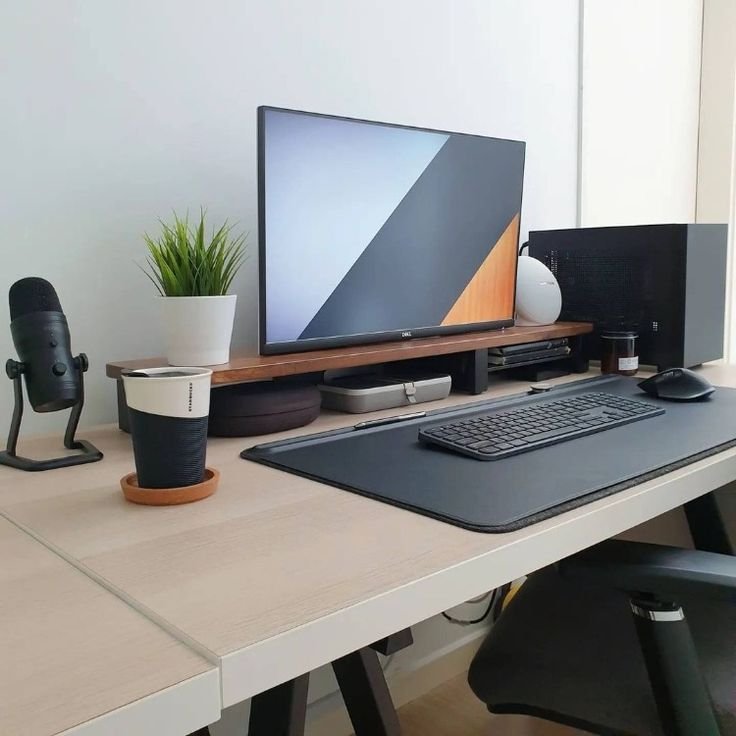
Essential 7: The Adjustable Footrest
Dangling feet or a chair too high throws off your whole chain—knees press wrong, lower back compensates, circulation suffers. A footrest plants your soles flat, supporting thighs parallel and taking pressure off the backs of your legs. Mine is angled and rocking slightly, letting me shift without standing up.
Look for height and tilt adjustable ones with non-slip surfaces. Even a sturdy box works in a pinch, but dedicated models add subtle movement. Use it when sitting if your desk forces a higher chair, or alternate feet for micro-adjustments.
Benefits hit circulation and back relief hard—prevents that pins-and-needles feeling many remote folks ignore until it’s chronic. I keep mine tucked under when standing, pulled out seamlessly. Common slip: Ignoring it because “my feet touch sometimes.” Adjust daily; it keeps posture honest through long calls.
Essential 8: Wrist Rests and Palm Supports
Wrists take the brunt of typing and mousing without support. Padded rests keep them straight and elevated just enough to avoid contact pressure that pinches nerves. I added thin gel ones for keyboard and mouse after noticing redness on my wrists from desk edges.
Choose soft but firm material that doesn’t compress too much. Position so forearms stay level—rests shouldn’t prop wrists high while palms float. Some mouse pads include built-in rests.
They prevent the downward bend that leads to carpal tunnel risks, especially in high-volume remote roles. My setup feels cushioned without sinking. Mistake: Overly thick rests that force new angles. Keep them minimal and clean regularly.
Essential 9: Task Lighting with a Desk Lamp
Glare from windows or overheads causes squinting, headaches, and eye fatigue that drains energy. A proper lamp gives focused, adjustable light from the side, cutting reflections on screens. I went with an LED arm that dims and changes color temperature.
Position to the side, not behind or directly above. Warm light for evenings, cooler for focus. Avoid backlighting your monitor.
This one tackles eye strain that compounds neck issues when you lean to see better. Remote surveys flag headaches as a top complaint. My eyes feel fresher after full days. Tip: Layer with window blinds. Don’t cheap out on flicker-free bulbs.
Essential 10: The Anti-Fatigue Mat
Standing feels great until your feet and calves burn after 20 minutes. A cushioned mat absorbs impact, encourages micro-shifts, and extends comfortable time on your feet. Mine has a slight slope and memory foam feel.
Thick but stable, with beveled edges to avoid tripping. Place it only under your standing zone.
It reduces leg fatigue and back pressure from static standing, making the desk switch truly sustainable. I stand longer without fidgeting. Error: Skipping it and toughing out sore feet. Rotate positions on the mat for even relief.
Essential 11: Blue Light Blocking Glasses
Screens blast blue light that messes with sleep and strains eyes during the day, leading to dryness, headaches, and that afternoon crash. Simple glasses with filters cut the harsh wavelengths without tinting everything yellow. I wear mine from 10 a.m. onward and notice sharper focus plus better wind-down at night.
Look for clear lenses with built-in protection rated for screens. Some clip over regular glasses. Pair with software dimmers for extra help.
They protect against digital eye strain that hits remote workers hard during long video marathons. My headaches faded, and evening sleep improved. Don’t treat as magic—still take screen breaks—but they add real power to your setup.
Wrapping this up, building these 11 into your remote desk doesn’t happen overnight, but start with one or two that hit your biggest pain points. I began with the chair and monitor arm, then layered the rest as budget allowed. The difference? No more ending days exhausted and sore. Productivity stays high because discomfort isn’t draining you. Remote work is a gift when your body cooperates. Listen to the signals—tweak heights weekly, take those micro-breaks, and walk around every couple hours. Your future self will thank you for investing in a setup that lasts. If you’re dealing with persistent pain, chat with a pro, but these essentials have kept me and plenty of others going strong. Here’s to pain-free desk life from wherever you log in.