Let me be honest with you — when I first started working from home, I thought all I needed was a laptop and a decent internet connection. That was a mistake that cost me about three months of chaotic, unproductive days.
My desk looked like a paper explosion. My browser had 47 tabs open at all times. I was in back-to-back video calls but somehow never actually finishing any real work. Sound familiar?
Then I started being intentional about the tools I used. Not just downloading every shiny app I saw on Reddit, but actually testing things and keeping what worked. What I’m sharing here are the seven tools that genuinely changed how I work — tools I open every single morning before I even pour my second cup of coffee.
1. Notion — My Second Brain for Everything
I resisted Notion for almost a year. Looked too complicated, too customizable, like I’d spend more time building systems than doing actual work. I was wrong.
Once I got past the initial learning curve (about a week of actual use), Notion became the one place I manage everything — project notes, client docs, content calendars, personal tasks, even grocery lists. The beauty is it’s flexible enough to work however your brain works.
What I actually use it for:
- A daily work journal where I log what I did and what’s blocked
- A content ideas database with tags and status columns
- Meeting notes linked to specific client projects
- A reading list that doesn’t get lost in browser bookmarks
The free plan is genuinely enough for solo remote workers. If you’re on a team, the paid tier makes collaboration seamless.
Mistake I made early on: Building a 10-page Notion system before I’d even used it for a week. Start with one page — a simple daily task list. Build from there.
2. Toggl Track — Because Time Lies Without Data
Here’s a humbling truth: I used to tell clients I spent “about 3 hours” on something, and then I started actually tracking my time. Sometimes it was 1.5 hours. Sometimes it was 5. My gut was completely unreliable.
Toggl Track is the cleanest, least annoying time-tracking tool I’ve found. One click to start, one click to stop. You name the project, assign a tag, and it builds a weekly report automatically.
Why it matters for remote workers specifically:
When nobody’s watching your clock, you either overwork or underwork — often both in the same day. Toggl gave me actual data on where my hours were going. Turns out I was spending almost 40 minutes a day just on email. Just knowing that made me fix it.
| Task Category | Estimated Time/Day | Actual Time (Toggl) |
|---|---|---|
| 15 min | 42 min | |
| Deep work | 4 hours | 2.1 hours |
| Meetings | 1 hour | 1.5 hours |
| Admin tasks | 30 min | 55 min |
Those numbers were a wake-up call. And once you see the data, it’s hard to ignore it.
The free version covers everything most individuals need. If you run a team and need invoicing tied to tracked time, the paid plan is worth it.

3. Slack (Used Right) — Not the Distraction Machine You Think
Okay, Slack gets a bad reputation — and honestly, it deserves it when used badly. I’ve been on teams where Slack was basically a 9-to-5 stream of interruptions with GIF reactions.
But when you set it up intentionally, it’s genuinely one of the best async communication tools available for remote teams.
What “using it right” actually looks like:
- Notification hours: I only allow notifications between 9 AM and 6 PM. Weekends are silent.
- Status updates: I use the status feature to show when I’m in deep work mode (🎯 Focusing — back at 2 PM)
- Channel discipline: Every project has one channel. No duplicate convos scattered across DMs.
- Huddles instead of full meetings: For quick 5-minute clarifications, Slack Huddles have replaced a ton of unnecessary 30-minute Zoom calls for me.
The biggest thing I changed? I turned off all Slack notifications for 2-hour blocks every morning. My response time went from immediate to “within a couple hours” — and nobody actually cared. Productivity went up significantly.
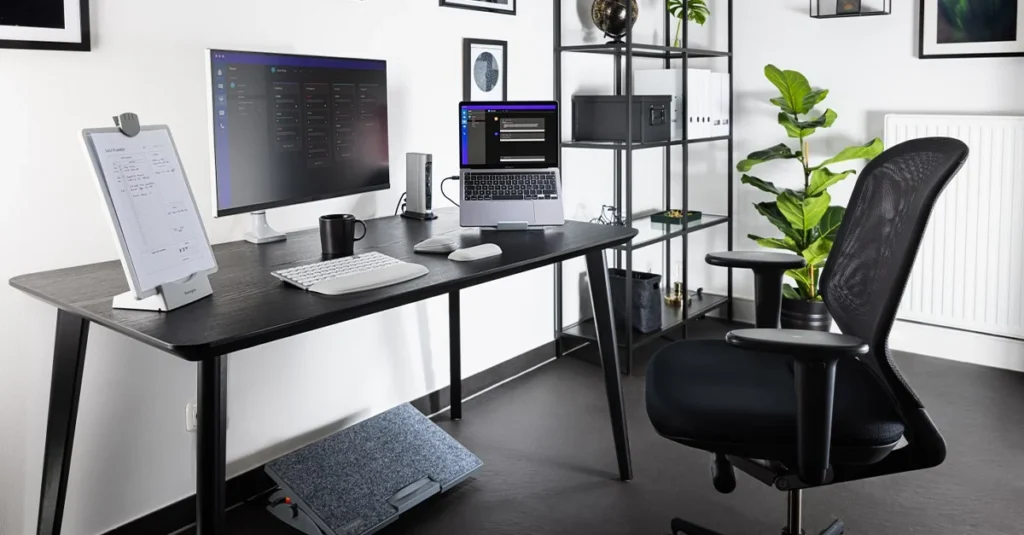
If you’re setting up your remote workspace from scratch, these remote desk life setup essentials pair really well with getting your digital tools sorted at the same time.
4. Google Workspace — Boring but Irreplaceable
I know. Not exciting. But I’d be lying if I left this off the list.
Google Docs, Sheets, Calendar, and Meet are the backbone of almost every remote team I’ve worked with — and for good reason. They’re reliable, real-time collaborative, and accessible from any device without installing anything.
The specific features I lean on most:
- Google Docs suggesting mode: For client reviews — they comment, I accept or reject, no email chains with attached Word files
- Google Calendar blocking: I block “focus time” on my calendar the same way I’d block a meeting. If it’s not on the calendar, it doesn’t exist.
- Shared Sheets for team dashboards: Simple live trackers that everyone can update without needing a paid project management tool
- Meet for quick check-ins: Less polished than Zoom, but zero friction for a 10-minute sync
One underrated Google Workspace trick: use the “+” shortcut to create new docs instantly from your browser address bar (like docs.new or sheets.new). Saves a ridiculous amount of time across a full week.
5. Loom — Async Video Messaging That Replaced Half My Meetings
This one genuinely surprised me. I thought video messaging tools were gimmicky until a client asked me to review a document and explain my feedback via Loom instead of a call.
That 4-minute video saved both of us a 45-minute meeting.
Loom lets you record your screen, your face, or both, and share a link instantly. The person watches on their own time, can leave timestamped comments, and you’ve communicated everything a meeting would cover — without scheduling anything.
Best use cases I’ve found:
- Onboarding documentation (record once, share forever)
- Design or copy feedback with visual walkthrough
- Status updates for clients in different time zones
- Bug reports that show exactly what went wrong
The free plan gives you 25 videos, which is honestly enough to test whether it fits your workflow. Once you send your first Loom and someone replies “oh this is so much clearer than a text brief” — you’ll be hooked.
Common mistake: Recording a 20-minute Loom. Keep them under 5 minutes. If it needs more, it probably deserves a real meeting or written doc.
6. Freedom — The Tool I’m Almost Embarrassed to Need
I’ll be straight: I have a YouTube problem. Left unchecked, I can go from “let me just check one thing” to 45 minutes of tech reviews I didn’t need.
Freedom is a website and app blocker that runs across all your devices simultaneously. You set a session (say, 90 minutes), choose your blocked sites, and it’s done — you literally cannot access them until the session ends.
What makes it different from browser extensions:
- It blocks across all browsers and the app at once, so you can’t just switch to Chrome to get around it
- You can schedule recurring block sessions (every weekday morning, for example)
- There’s a “locked mode” where even you can’t turn it off early
I run a 2-hour Freedom block every morning from 8 to 10 AM. No social media, no news sites, no YouTube. Just the tools I need for actual work.
The difference in deep work output during those two hours versus any unblocked two hours is not even close.
This pairs really well with building solid focus habits for remote work — the digital and physical environment working together.
7. 1Password — The Boring Tool That’s Secretly Critical
Last one, and I promise it matters more than it sounds.
When you work remotely, you’re logging into dozens of platforms across different devices, sometimes on different networks. Weak or reused passwords are genuinely dangerous — not theoretical, actually dangerous.
1Password is a password manager that generates strong unique passwords for every site, remembers them, and fills them in automatically. You only remember one master password.
Why it’s a productivity tool, not just a security tool:
- Zero time lost to “forgot password” resets (this happens more than you’d think at scale)
- Secure sharing of credentials with teammates without sending passwords in Slack DMs
- Travel mode that hides sensitive vaults when crossing borders
- Works across Mac, Windows, iOS, Android, and all major browsers
I resisted this for years and just reused slightly varied passwords. Then a client’s shared account got compromised through a password reuse attack. After that, 1Password became non-negotiable.
It costs about $3/month for individuals. The time and stress it saves is worth 10x that.
A Quick Look at How These Tools Work Together
Here’s how a typical productive morning looks with all of these running:
| Time | Tool in Use | What’s Happening |
|---|---|---|
| 8:00 AM | Freedom | Distraction block starts automatically |
| 8:05 AM | Notion | Review today’s task list + priorities |
| 8:10 AM | Toggl Track | Start timer on first task |
| 9:30 AM | Loom | Record a quick client update instead of scheduling a call |
| 10:00 AM | Slack | Check messages, respond in batches |
| 10:30 AM | Google Docs | Collaborate on project doc with teammate |
| 12:00 PM | Toggl Track | Review morning time log |
It’s not magic. But it’s a system that removes friction from almost every part of the workday.
Mistakes I Made Before Getting This Right
Mistake 1 — Using too many tools at once. At one point I had Notion, Trello, Asana, AND a paper planner all running simultaneously. Nothing was in sync and I spent more time updating tools than doing work. Pick one task system and commit.
Mistake 2 — Not setting boundaries with communication tools. Slack and email were always open, always notifying. The constant context-switching was destroying my focus. These focus tricks remote workers swear by helped me think about it differently.
Mistake 3 — Skipping time tracking because it “felt like extra work.” It is extra work — about 30 seconds per task. But the data it generates is genuinely valuable, especially if you’re freelance or trying to improve your output.
Mistake 4 — Using the free version of everything and missing critical features. Some tools have free tiers that genuinely cover solo use. Others (like Notion for teams) cripple functionality until you pay. Know the difference before committing to a workflow built around a feature you don’t actually have.
Final Thoughts
None of these tools are magic bullets. I’ve seen people with $50/month in software subscriptions who still can’t finish a task by noon. The tools only work if you work them.
What actually moved the needle for me wasn’t finding the perfect app — it was building consistent habits around a small set of reliable tools. Less switching, more depth.
If you’re starting from scratch, I’d say: pick Toggl (to understand where your time goes), Notion (to organize everything), and Freedom (to protect your focus time). Get comfortable with those three before adding anything else.
The rest will fall into place.
Also worth reading: If you’ve nailed your digital tools but your physical workspace is still a mess, it’s worth checking out 11 Easy Remote Desk Life Productivity Tweaks That Saved Me Hours — small changes that make a surprisingly big difference.