I still remember the day I sat down at my “home office” — which was really just a dining chair pulled up to a kitchen table — and thought, this is fine. Six months later, my back was screaming, my focus was shot, and I was taking more breaks than actual work sessions.
That’s when I started taking my workspace seriously. Not in a “spend $5,000 on an Instagram-worthy setup” kind of way, but in a real, practical way. One upgrade at a time, things started clicking. My energy improved. My output doubled. I stopped dreading sitting down to work.
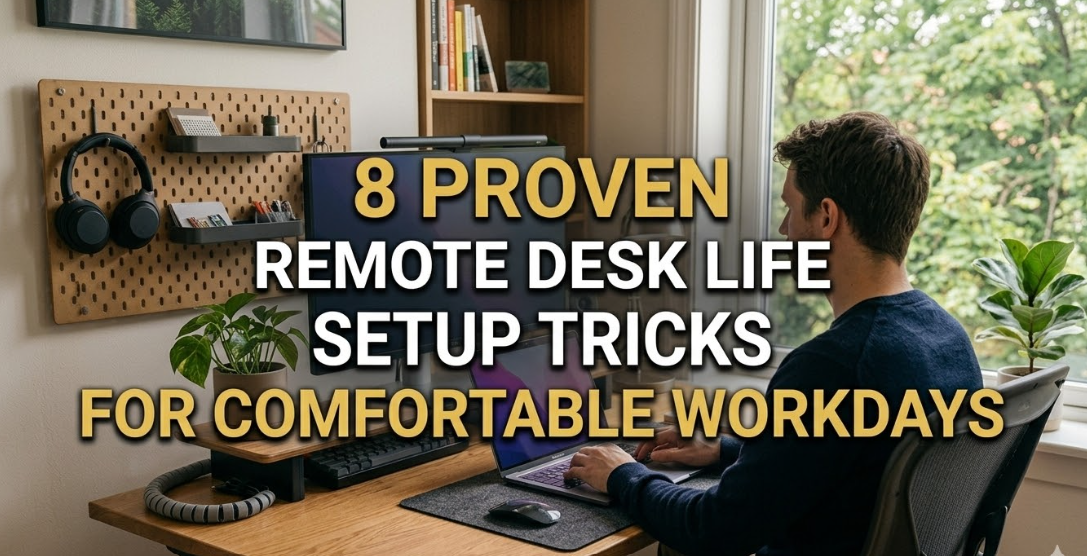
Here are the 8 upgrades that actually moved the needle — no fluff, just what genuinely worked for me.
1. A Proper Monitor Stand (or Arm) — The Neck-Saver I Should Have Bought First
This sounds boring. I know. But hear me out.
For the first year of working from home, my laptop sat flat on my desk. I was constantly hunching forward, craning my neck down like I was reading a newspaper on the floor. By 3 PM every day, I had this dull tension headache that I just accepted as “normal.”
It wasn’t normal. It was bad posture.
I picked up a basic monitor arm — nothing fancy, around $35 on Amazon — and raising the screen to eye level was genuinely life-changing. Zero exaggeration. The headaches stopped within a week.
What to look for:
- Adjustable height and tilt
- Compatibility with your monitor size and weight
- VESA mount support (most modern monitors have it)
If you’re on a budget, even a simple monitor riser block works. The goal is getting your screen at eye level so your neck stays neutral.
2. A Mechanical Keyboard — The Upgrade I Resisted the Longest
I resisted this one for years because it felt like a luxury. Keyboards are keyboards, right?
Wrong.
I was using the flat, mushy keyboard that came with my setup, and I didn’t realize how much tension I was holding in my fingers and wrists until I switched to a mechanical keyboard with tactile switches (I went with Cherry MX Browns). The typing feel is so much better — you don’t have to bottom out every keystroke, which means less strain over a long day.
Bonus I didn’t expect: I actually type faster and make fewer errors. Something about the feedback just makes you more deliberate.
You don’t need a $200 keyboard. There are solid options in the $50–$80 range that will make a noticeable difference.
Quick tip: If you’re in a lot of video calls, check the noise level of the switches before buying. Clicky switches (like Blues) sound satisfying but can drive your colleagues insane.
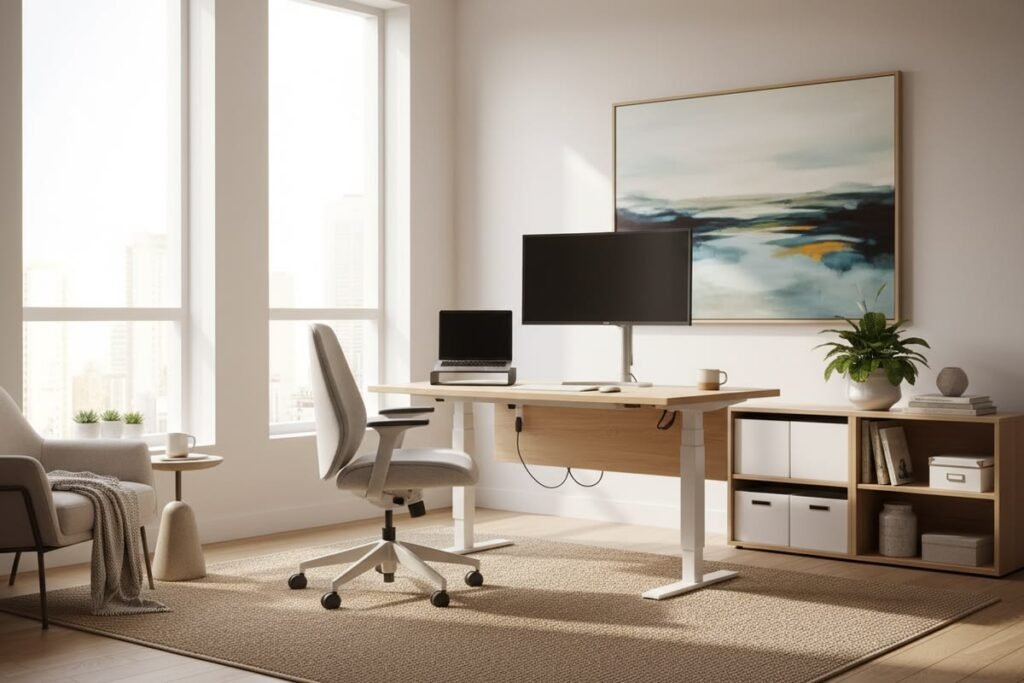
3. Cable Management — My Desk Went from Chaos to Calm
This one is less about hardware and more about sanity.
My desk used to look like a spaghetti explosion. Five cables going in random directions, constantly getting tangled, one of them mysteriously draining my laptop battery because it wasn’t fully seated. I’d lose time every single day either untangling something or wondering why my headset wasn’t charging.
I spent about two hours one Saturday and $20 on:
- Velcro cable ties
- A cable raceway (the plastic channel you stick along the back of your desk)
- A small cable box to hide the power strip
The result? My desk instantly looked cleaner, felt calmer, and I stopped losing time to cable drama.
There’s also a psychological thing that happens when your desk is visually clean — you actually want to sit down and work. Clutter creates low-level stress you might not even notice until it’s gone.
👉 If you’re just starting out with workspace organization, check out these 11 powerful remote desk life organization tips for minimal workspaces — they helped me build a system that actually sticks.
4. An External Webcam — Because Built-In Laptop Cameras Are Embarrassing
I didn’t realize how bad my laptop webcam was until a coworker on a video call said, “Are you in a cave?”
The built-in camera was shooting at a weird upward angle (hello, ceiling and nostril view), the image was grainy, and the low-light performance was basically nonexistent. I looked unprofessional on every call, which matters more than most people admit.
I grabbed a Logitech C920 — it’s been the go-to recommendation for years for a reason. Clear image, decent low-light handling, plug-and-play USB. No drivers, no setup headaches.
Key things that improved:
- My video quality on Zoom/Google Meet calls
- How I’m perceived in meetings (people actually take you more seriously)
- My own confidence on camera
Pair it with a simple ring light or position yourself near a window, and you’ll look better on video than 90% of people in most meetings.
5. Ergonomic Chair or Lumbar Support — My Back Required This
Okay, real talk: I didn’t buy a $500 ergonomic chair. I’m not at that budget level, and honestly, you don’t have to be either.
What I did do was buy a $30 lumbar support cushion and adjust my existing chair properly for the first time. I followed a simple guide on proper chair setup — feet flat, knees at 90 degrees, back supported — and added the lumbar pillow for lower back support.
The difference was immediate. I went from shifting uncomfortably every 20 minutes to actually sitting still and focused for 90-minute stretches.
If you’re in the market for a new chair, look for:
- Adjustable armrests (crucial for shoulder tension)
- Lumbar support that’s actually adjustable
- Seat depth adjustment
And if a full chair upgrade isn’t in the budget yet, a lumbar cushion is the highest-ROI purchase I’ve made for physical comfort. Seriously.
👉 For more on this, these 11 powerful remote desk life ergonomic essentials for remote workers go deep on what actually matters vs. what’s just marketing.
6. A USB Hub — The Tiny Thing That Fixed Daily Frustration
This one sounds so minor but it drove me absolutely crazy before I fixed it.
My laptop has two USB-C ports and one USB-A. That’s it. I had a keyboard, mouse, webcam, external drive, and phone charger to deal with. I was constantly unplugging and replugging things, and one week my USB-C port started feeling loose from the constant in-and-out.
A 7-port USB hub ($25–$40) changed everything. Everything plugged in, everything stayed plugged in. I only connect the hub to my laptop — one cable — and everything else just works.
What to look for in a hub:
- Enough ports for your devices (get more than you think you need)
- USB-C power delivery if you want to charge your laptop through it
- Data transfer speed (USB 3.0 minimum)
This is one of those upgrades where you wonder how you managed without it. Low cost, high impact.
7. Proper Desk Lighting — This One Actually Surprised Me
I thought desk lighting was purely aesthetic. You know, those setups on YouTube where people have LED strips and a fancy lamp, and it looks cool but probably does nothing.
I was wrong.
The overhead light in my home office is harsh and creates glare on my monitor. Adding a desk lamp with adjustable color temperature made a real difference — warm light in the morning to ease into the day, cooler light in the afternoon when I need to focus hard.
I also added a small bias light (basically an LED strip behind my monitor) which reduces eye strain significantly during long sessions. It creates a soft glow that makes the contrast between the bright screen and the dark room much less aggressive on your eyes.
My current lighting setup:
| Light Source | Purpose | Cost |
|---|---|---|
| Desk lamp (adjustable Kelvin) | Task lighting, mood | ~$40 |
| Bias light (LED strip) | Reduce eye strain | ~$15 |
| Natural window light | Morning sessions | Free |
The combo of these three has genuinely reduced my eye fatigue by the end of the day. I used to finish work with that scratchy, tired-eye feeling every single day. Now it’s much less frequent.
8. A Dedicated Work-Only Notebook (Physical) — The Analog Upgrade Nobody Talks About
This one’s going to sound counterintuitive coming from a tech-focused list, but stick with me.
I tried every digital task manager out there — Notion, Todoist, TickTick, Obsidian. I kept switching because none of them stuck. The problem wasn’t the apps. It was that I was context-switching constantly between my task list and my actual work, which destroyed my focus.
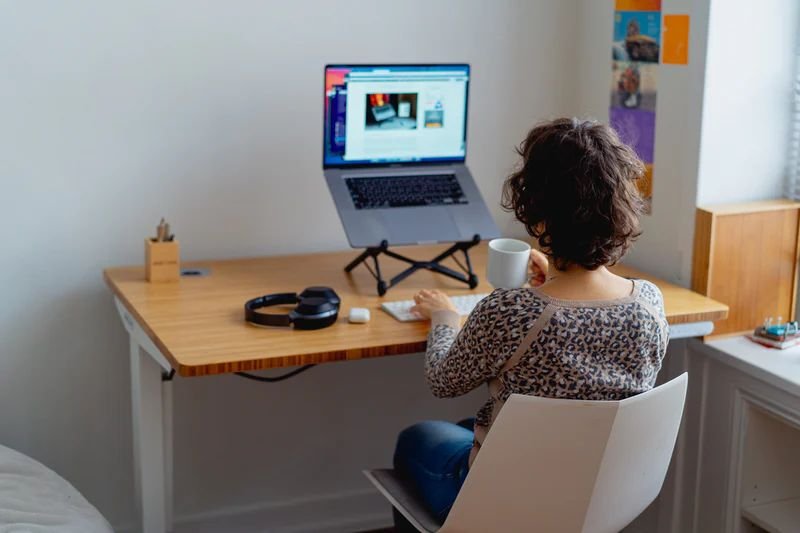
About a year ago, I started keeping a simple A5 notebook on my desk. Every morning, I write my top 3 priorities for the day. Nothing else. Just three things.
The physical act of writing slows you down in a good way. You think more deliberately about what actually matters. And crossing something off with a pen is more satisfying than clicking a checkbox, for whatever psychological reason.
This didn’t cost me more than a few dollars, and it’s probably been the single biggest focus upgrade I’ve made. I still use digital tools for project management, but my daily focus lives on paper.
Common Mistakes I Made (So You Don’t Have To)
Buying everything at once: I made this mistake early on. Spent a lot all at once, some things didn’t work for me, and I couldn’t return everything. Upgrade one thing at a time and actually use it before moving to the next.
Ignoring ergonomics until something hurt: Don’t wait for back pain or wrist strain to tell you something’s wrong. Set up properly from the start.
Optimizing the look, not the feel: I spent time making my desk look nice for photos before I made it actually work for me. Function first, aesthetics second.
Not testing before committing: If possible, try things before buying. Visit a store to feel keyboard switches. Sit in the chair before ordering online.
What a Good Setup Actually Does For You
Here’s a quick breakdown of what each upgrade actually addresses, in case you’re trying to prioritize:
| Upgrade | Primary Benefit | Budget Range |
|---|---|---|
| Monitor arm/stand | Posture, neck pain | $20–$80 |
| Mechanical keyboard | Comfort, typing speed | $50–$150 |
| Cable management | Mental clarity, organization | $15–$40 |
| External webcam | Professional appearance | $60–$150 |
| Ergonomic support | Back/body comfort | $30–$500+ |
| USB hub | Convenience, port protection | $25–$60 |
| Proper lighting | Eye strain, mood | $30–$80 |
| Physical notebook | Focus, task clarity | $5–$15 |
You don’t need to do all of these at once. If I had to pick a starting three, I’d say: monitor arm, lumbar support, and cable management. Those three alone will make your setup feel like a different place.
The Real Lesson After All of This
What I’ve learned after years of tweaking my setup is that no single upgrade transforms your workday — it’s the combination of small improvements that adds up to something significant.
When your neck doesn’t hurt, you focus better. When your desk is clean, your mind feels clearer. When your chair supports you properly, you stay in the zone longer. It all compounds.
And none of this needs to be expensive or done overnight. Start with one problem you’re actually experiencing — back pain, cable mess, eye strain — and fix that first. Then move to the next.
👉 For more practical workspace ideas, I highly recommend reading through these 9 powerful remote desk life setup ideas — there are some gems in there that I’ve personally applied.
If you’re just getting started and want a solid foundation before upgrading individual pieces, this guide on 11 remote desk life setup essentials every remote worker needs is a great place to begin.