Meta Description: Upgrading your remote desk life setup doesn’t have to break the bank. Here are 7 quick, low-cost fixes (each under $50) that improve your comfort, focus, and productivity today.
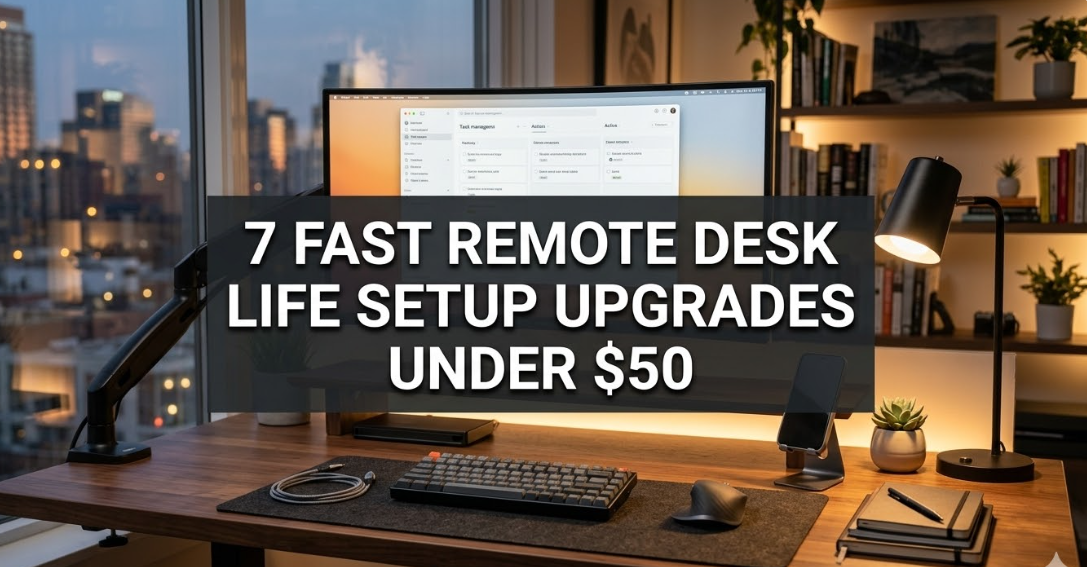
7 Quick Remote Desk Life Setup Upgrades Below $50
Remote work seems so appealing — until your back aches, you have glare on your screen, and you’re hunched over a cluttered desk that disrupts your concentration.
The good news? You don’t have to spend hundreds of dollars to get it fixed. A few smart, inexpensive upgrades can fundamentally alter the way you feel and work at your desk every day.
This guide includes 7 remote desk life setup upgrades you can make for your space, all of which cost less than $50. Whether you’re working from home five days a week or just two or three, these changes are worth every nickel.
Let’s get into it.
Why Your Remote Workspace Setup Really Does Matter
What a lot of people don’t realize is how much their output depends on their workspace.
Research suggests cluttered, uncomfortable workspaces result in diminished focus, increased fatigue, and escalated stress. Conversely, a tidy, ergonomic, and well-lit desk can enhance your mood as well as your productivity — often without you even realizing it.
The remote desk life setup you adopt sends your brain a message: This is where work happens. That mental transition from “home mode” to “work mode” is a big deal.
And the best part? Fixing it doesn’t need a complete overhaul. Just a few key upgrades.
What You Can Actually Change for Less Than $50
Each of the upgrades below is well under the $50 mark. Most are available on Amazon, at local office supply stores, or even through secondhand marketplaces. You don’t have to get all seven at once — focus on what’s most painful for you right now.
Upgrade #1 — A Large Desk Pad That Brings Everything Together
Estimated cost: $10–$20
This is the single simplest upgrade you could possibly make, and it has the biggest visual impact.
A desk pad (also known as a desk mat) provides one clean, cohesive layer that goes over your entire work surface. It safeguards your desk against scratches and spills. It gives your mouse a consistently smooth surface. And it instantly makes your setup look more purposeful.
What to Look For
- Go for a pad that’s at least 31 inches wide — large enough for your keyboard, mouse, and a notepad
- Leather-style or microfiber surfaces both work well
- A non-slip rubber base prevents it from sliding around
- Solid neutral colors like black, grey, or dark green look neat and professional on video calls
Most good options sit between $10 and $20 on Amazon. The before-and-after difference is striking.
Why This Works for Your Remote Desk Life Setup
When everything on your desk sits on one continuous surface, your brain perceives the space as more organized — even if nothing else has changed. It’s a simple visual trick that really does work.
Upgrade #2 — Cable Management Clips to End the Mess
Estimated cost: $6–$12
A tangle of cables is the fastest way to kill a clean remote desk life setup.
Power cables, monitor cables, USB hubs, phone chargers — they multiply fast. Cable management clips are small, adhesive-backed channels that stick to the back or underside of your desk and guide cables neatly out of sight.
Two-Minute Fix, Lasting Results
Here’s how to do it in less than five minutes:
- Unplug everything
- Attach the clips along the back edge of your desk
- Run your cables through the channels
- Plug everything back in
Done. Your desk is instantly cleaner, and you’ll stop accidentally knocking cables off your desk mid-call.
Velcro cable ties are another inexpensive add-on worth grabbing alongside clips — they keep cables bundled together behind the desk. A combined set typically costs less than $10.
Upgrade #3 — A Clip-On LED Desk Light That Actually Lights Your Face
Estimated cost: $15–$25
Poor lighting is perhaps the most underrated issue with home office setups.
If the room light comes from behind you, your face looks dark on camera. If your only light source is your screen, you end up squinting and looking washed out. Either way, you look unprofessional — and most likely have a headache by 3pm.
What Makes a Good Desk Light
- Look for a light with adjustable color temperature — warm light for evenings, cool daylight for focused work
- Brightness control matters — the ability to dim down after sunset is a big deal
- Clip-on models mount directly on your monitor frame, pointing light straight at your face — ideal for calls
- USB-powered options mean no extra power adapters
A solid clip-on LED desk light in the $15–$25 range fixes your lighting, reduces eye strain, and makes you look better on video calls — all at once.
This is one of those upgrades where you feel the ROI immediately.
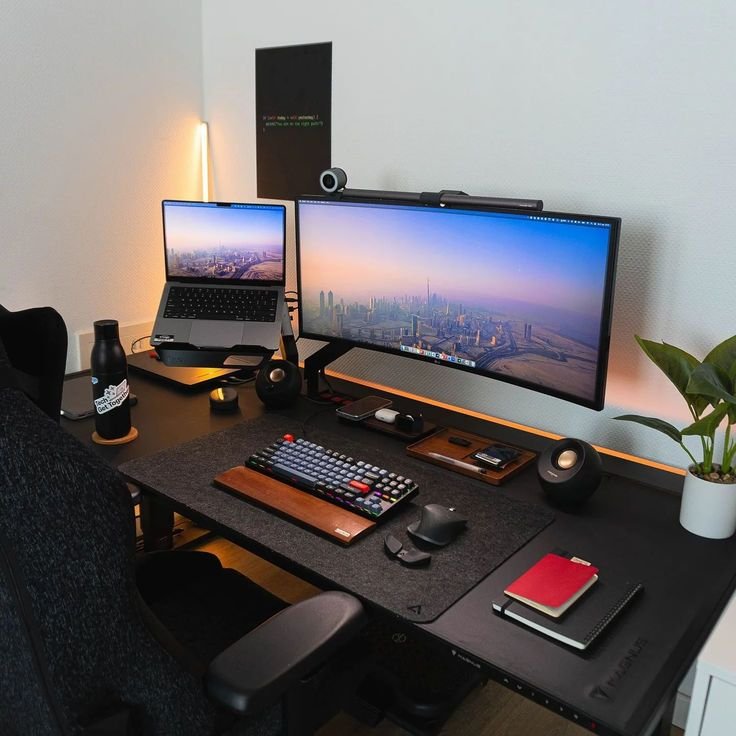
Upgrade #4 — A Laptop or Monitor Stand That Won’t Kill Your Neck
Estimated cost: $15–$35
If your laptop is sitting directly on your desk, your neck tilts downward all day long. That’s a slow, steady march toward neck and shoulder pain.
Raising your screen to eye level is one of the most ergonomically impactful changes you can make to your remote desk life setup. A monitor or laptop stand does exactly that — lifting your screen 4 to 6 inches brings it directly into your natural line of sight.
Stand Options at Different Price Points
| Type | Price Range | Best For |
|---|---|---|
| Basic plastic laptop stand | $10–$15 | Laptop users on a tight budget |
| Aluminum laptop stand | $20–$30 | Better stability and heat dissipation |
| Monitor riser with storage | $25–$40 | Extra desk shelf space underneath |
| Adjustable arms (basic) | $30–$50 | Full flexibility in height and angle |
If you go the laptop stand route, you’ll want to pair it with an external keyboard and mouse — otherwise your hands will be too low relative to the screen. Both can be found cheaply.
The Health Angle
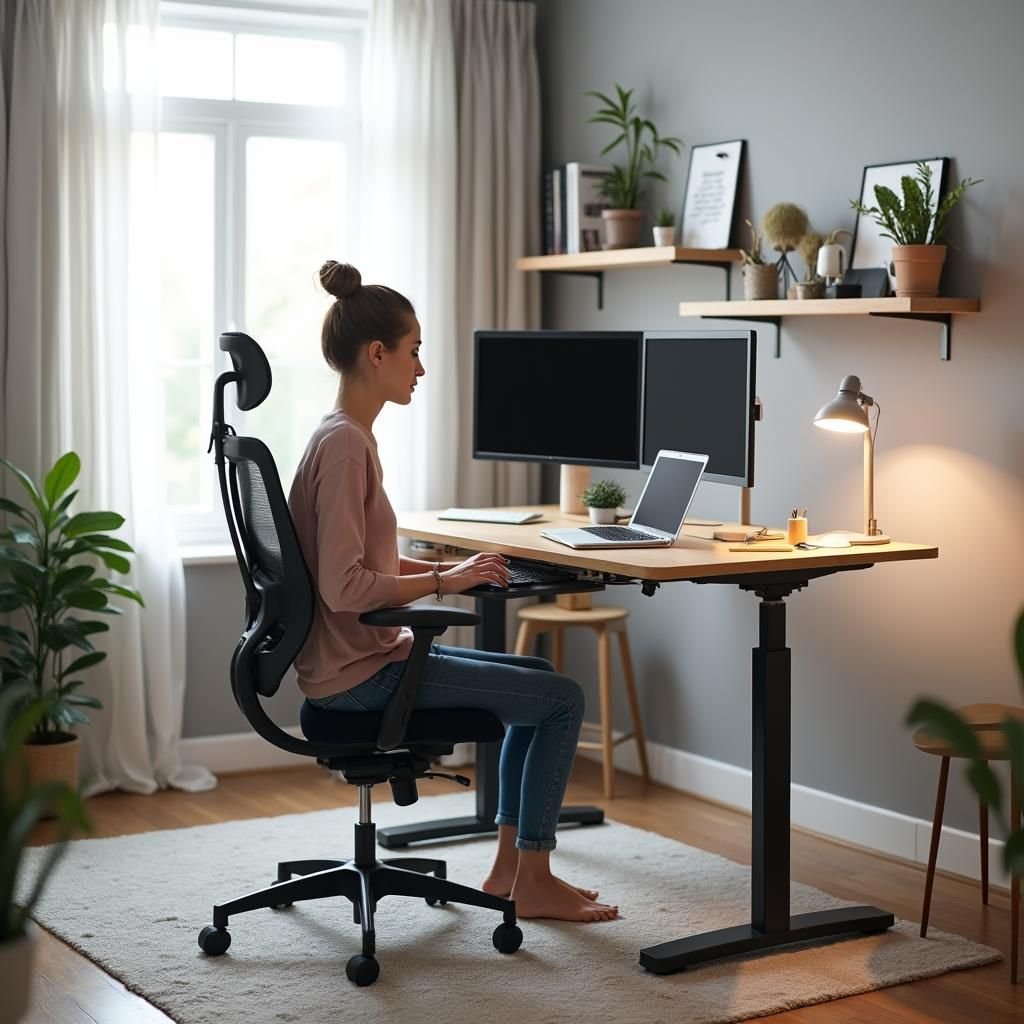
According to ergonomics guidelines, your monitor should be roughly at or just below eye level, about an arm’s length away. Most people are working with screens well below that. A $20 stand corrects years of bad posture habits in one afternoon.
For more practical tips on optimizing your home office for comfort and efficiency, visit Remote Desk Life — a dedicated resource for remote workers looking to build better, smarter workspaces.
Upgrade #5 — A Wrist Rest That Keeps Typing Comfortable All Day
Estimated cost: $10–$20
Here’s one that most people skip — and then wish they hadn’t.
Typing on a flat keyboard for 6–8 hours a day puts constant strain on your wrists. Over time, that leads to soreness, tension, and in severe cases, repetitive strain injuries such as carpal tunnel syndrome.
A wrist rest is a padded cushion that sits in front of your keyboard. It supports the heel of your hand while you type, keeping your wrists in a neutral, flat position.
Memory Foam vs. Gel
Both options work well. Here’s how they differ:
- Memory foam wrist rests mold to your shape over time and feel soft and cushioned. They’re great for most typists.
- Gel-filled wrist rests stay cool and firm, which some people prefer. They spring back quickly when you lift your hands.
A decent model of either type costs $10–$20. If you want your entire setup to be consistent, pair it with a matching mouse pad wrist rest.
Small upgrade. Big daily impact.
Upgrade #6 — A Budget Monitor Riser That Also Adds Desk Storage
Estimated cost: $20–$45
This one pulls double duty.
A monitor riser raises your screen (just like a stand) but also gives you a shelf underneath for storage. You can slide your keyboard under it when not in use, store notebooks, keep charging cables handy, or put away small items that would otherwise clutter your desk surface.
What to Look for in a Monitor Riser
- A solid, stable base — no wobble when you type
- At least 4 inches of clearance underneath for storage
- Wide enough for your monitor or laptop to fit comfortably
- Some models include side USB ports, which is a nice bonus
Both bamboo and acrylic options look great on camera. Wood-finish risers, in particular, look professional and warm — a true glow-up for any remote desk life setup on a budget.
According to OSHA’s ergonomics guidelines, monitor height and distance are among the most critical factors in preventing workplace musculoskeletal disorders — making this upgrade more than just aesthetic.
Upgrade #7 — Blue Light Glasses to Protect Your Eyes After Hours
Estimated cost: $15–$30
This final upgrade is not for your desk — it’s for your eyes.
Staring at screens all day exposes you to blue light, which inhibits melatonin production and throws off your sleep cycle. Over time, it also leads to eye fatigue, dry eyes, and headaches.
Blue light glasses have a special filter coating that blocks or reduces the amount of blue light reaching your eyes. You wear them like normal glasses while you work.
Do They Actually Work?
The science is still up for debate, but many remote workers report significantly less eye strain and better sleep quality when using them regularly. And at $15–$30 for a non-prescription pair, the cost of trying them is low.
Look for options with:
- Clear or light-yellow tints — dark yellow lenses distort color too much
- Lightweight frames that don’t pinch after long hours of wear
- Anti-reflective coating — this also helps with screen glare
Even if you’re skeptical, they’re inexpensive enough to try without real risk.
How These 7 Upgrades Work Together
| # | Upgrade | Est. Cost | Solves | Impact |
|---|---|---|---|---|
| 1 | Desk pad | $10–$20 | Visual clutter, mouse surface | ⭐⭐⭐⭐⭐ |
| 2 | Cable clips | $6–$12 | Cable chaos | ⭐⭐⭐⭐⭐ |
| 3 | LED desk light | $15–$25 | Eye strain, bad video lighting | ⭐⭐⭐⭐⭐ |
| 4 | Laptop/monitor stand | $15–$35 | Neck & shoulder pain | ⭐⭐⭐⭐⭐ |
| 5 | Wrist rest | $10–$20 | Wrist strain, RSI risk | ⭐⭐⭐⭐ |
| 6 | Monitor riser | $20–$45 | Screen height, storage space | ⭐⭐⭐⭐⭐ |
| 7 | Blue light glasses | $15–$30 | Eye fatigue, sleep disruption | ⭐⭐⭐⭐ |
If you purchased everything on this list at mid-range prices, you’d spend roughly $95–$130 total. But you don’t need to do it all in one go. Start with the two or three upgrades that address your biggest pain points and build from there.
The Best Order to Upgrade Your Remote Desk Setup
Not sure where to start? Here’s an easy priority guide based on the most common complaints from remote workers:
- If your back or neck hurts → Start with the laptop stand or monitor riser (Upgrades 4 or 6)
- If your desk looks messy and distracts you → Start with the desk pad and cable clips (Upgrades 1 and 2)
- If you get headaches by mid-afternoon → Start with the LED light and blue light glasses (Upgrades 3 and 7)
- If your wrists ache after long typing sessions → Start with the wrist rest (Upgrade 5)
Tackle the thing that bothers you most, first. You’ll feel the difference right away, and that will push you to keep improving.
Bonus Tips to Make Your $50 Go Even Further
You can squeeze even more value out of your budget with a few extra habits:
Declutter before you buy anything. Removing items from your desk costs nothing and instantly makes your space feel bigger and calmer.
Check Facebook Marketplace or thrift stores. Monitor stands, desk lamps, and laptop risers show up secondhand all the time at a fraction of retail price.
Buy multipacks when possible. Cable clips, velcro ties, and desk accessories almost always come in packs — the per-unit cost drops substantially.
Look for bundle deals. Some sellers offer desk setup starter kits that include a desk mat, cable clips, and a wrist rest together for $25–$35.
Common Mistakes People Make With Home Office Upgrades
Steer clear of these before you spend a single dollar:
Buying a chair accessory instead of fixing posture habits. A lumbar pillow on a bad chair is still a bad chair. If your chair is genuinely broken, that’s the root issue. But most posture problems can be fixed for free by adjusting your monitor height and sitting properly.
Choosing looks over function. That pastel pink keyboard might photograph well for Instagram, but if the keys feel mushy and slow your typing down, it isn’t helping your remote desk life setup.
Upgrading everything at once without testing. Buy one thing, live with it for a week, and assess. You’ll learn a lot about what your desk actually needs.
Ignoring ambient noise. A cheap pair of noise-canceling earbuds or even foam earplugs can do wonders for your focus — and they’ll cost you less than $15.
FAQs About Remote Desk Life Setup Upgrades
Q: Do I have to spend a lot to have a good home office setup?
Absolutely not. As this guide illustrates, many of the highest-impact changes cost under $15. The aim is to fix friction points — not build a showroom.
Q: Is a desk pad really worth it, or is it purely aesthetic?
It’s both functional and aesthetic. Your mouse tracks better on it, your desk surface is protected, and visually it makes your entire setup feel more purposeful. It’s one of the best-value upgrades on this list.
Q: Will a laptop stand actually help my posture?
Yes — significantly. Tilting your neck downward all day is a major cause of neck and shoulder tension. Raising your screen to eye level is one of the most recommended ergonomic changes by occupational health professionals.
Q: Do blue light glasses actually work?
The evidence is mixed in clinical studies, but many remote workers report real benefits — especially reduced eye fatigue in the evenings and better sleep. They’re cheap enough to try for a few weeks and see if they help you personally.
Q: How do I manage cables neatly without drilling into my desk?
Adhesive cable clips and velcro ties work great without any drilling. Stick the clips along the back edge of your desk and run cables through them. It takes about five minutes and is completely reversible.
Q: What’s the single best upgrade if I can only afford one thing right now?
If you have physical discomfort, go with a laptop stand. If your main problem is distraction and clutter, choose a desk pad. Both are well under $20 and solve real daily problems.
Q: Can I improve my remote desk setup without buying anything?
Yes. Tidying your desk, adjusting your chair height, positioning your screen at eye level using old books as a makeshift riser, and improving natural light all cost zero. But the paid upgrades make those improvements permanent and more comfortable.
In Conclusion — Your Plan for a Better Remote Desk Life Setup
Here’s the bottom line: your workspace shapes how you work.
A better remote desk life setup isn’t about impressing people on video calls (though that’s a pleasant side effect). It’s about removing friction, protecting your body, and creating an environment where your best thinking can happen.
The seven upgrades covered here — a desk pad, cable clips, an LED light, a laptop stand, a wrist rest, a monitor riser, and blue light glasses — are all small, affordable, and genuinely impactful. Many cost less than the price of a nice lunch out.
You don’t need a perfect setup on day one. Just choose one upgrade, make that change, and notice the difference. Then pick another. Over time, your desk becomes the kind of place you genuinely want to sit down and work.
That’s the whole point.
Estimated total spend for all 7 upgrades: $96–$140 at mid-range prices. Choose based on your priorities and budget.