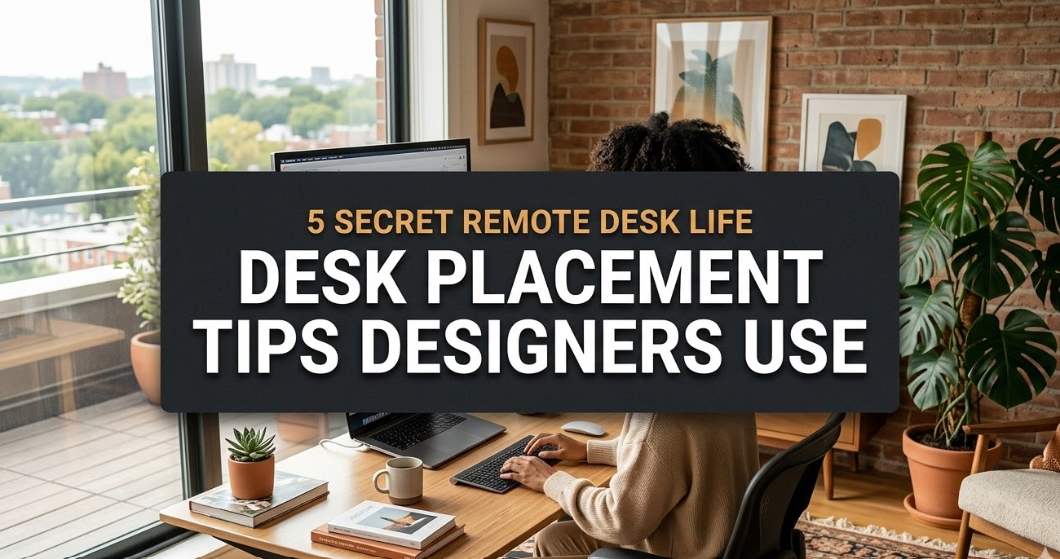
Meta Description: Remote desk life desk placement tips can completely transform your focus and energy. Discover 5 designer-approved placement secrets most remote workers never know.
5 Secrets Designers Use That 98% Of The Population Never Tries For Remote Desk Position
You set up your home office. You bought a decent chair. Perhaps even bought a monitor.
But by noon, you still feel wiped out. Your Zoom calls look terrible. And focus? It disappears after the first hour.
Here’s the missing link for most remote workers: the location of your desk in a room is just as important as what you put on top.
Interior designers, ergonomic specialists and workplace strategists have devoted years to pinpointing the precise desk-location guidelines that render a home office feeling sharp, professional and genuinely easy to work in. These are not obvious tips. They are not “get a standing desk, or buy a plant.”
These are placement decisions — quiet, spatial choices that alter everything.
This guide covers all five. By the time you’re done, you’ll know precisely how to arrange your remote desk for better focus, better health, better video calls and a better overall work-from-home experience.
Why Desk Placement Is the Missed Bedrock of Remote Work
Much remote work advice has focused on tools. Better webcams. Noise-cancelling headphones. Productivity apps.
No one ever mentions where the desk goes.
That is a mistake.
Your brain never stops reading the space around you. Where light comes from. Whether you can see the door. How sound reflects off of the walls. What’s going on behind you that brings about low-level anxiety.
These signals influence cortisol, the intensity of focus and even how much you enjoy your work. A desk stuck in a bad spot causes friction you can’t name but certainly feel.
Designers know this. They call it spatial intelligence — the ability to arrange a room so that it’s working with the person who enters it, not against them.
The following five tips are lifted straight from that world.
Tip 1: Position Your Desk Perpendicular to the Window — Not Facing It
This is the most common mistake of all in home office setup.
Most people configure their desk facing a window, as it looks aesthetically pleasing. The view feels inspiring. Natural light floods in.
But this is the problem: your screen is now up against a source of light behind it or in front of your eyes. The outcome is glare, burnt-out images and a body that’s always straining. You look like a shadow on video calls.
The Perpendicular Rule
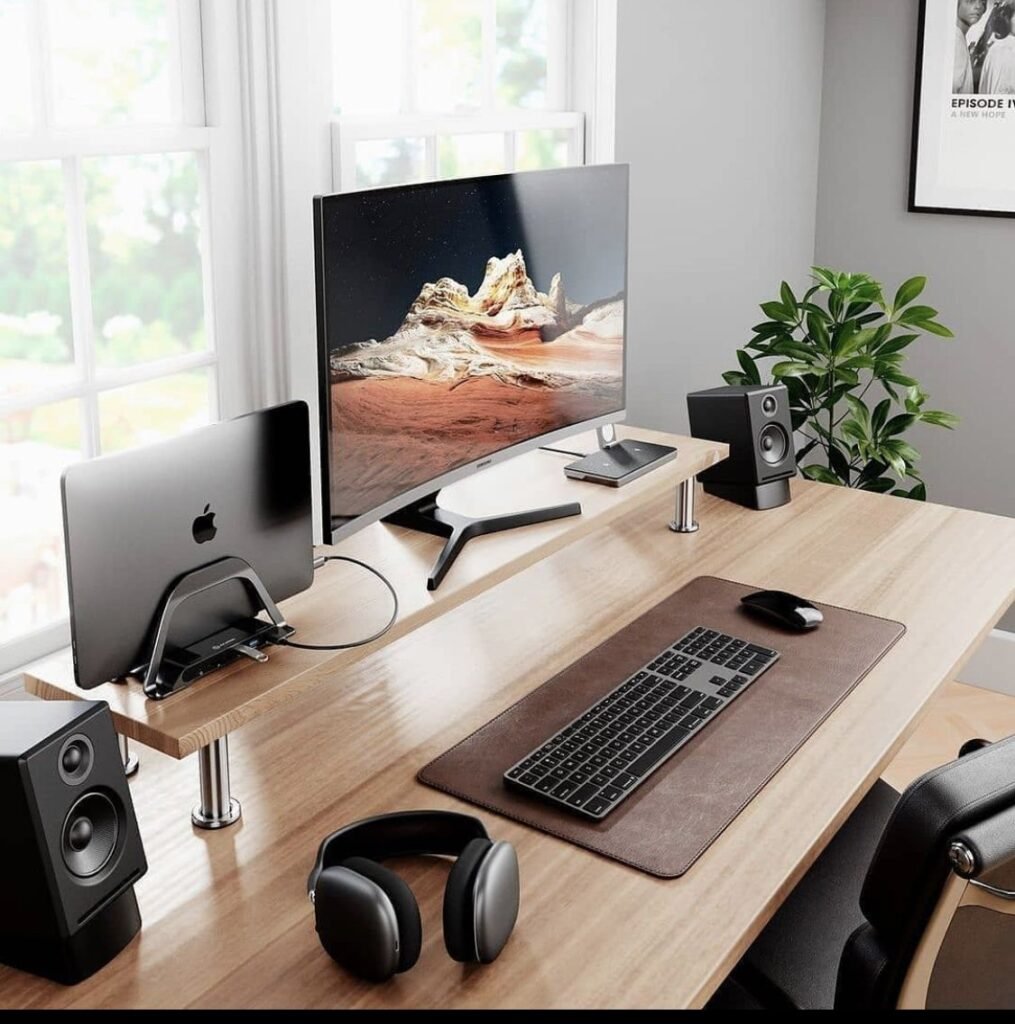
Designers always place desks so that the window is to the side — ideally, your left side if you are right-handed.
This does three things:
- Your workspace is flooded with natural light, but not the screen
- Your eyes aren’t having to constantly adjust between a bright window and a darker monitor
- Soft side-lighting makes your face look glossy and professional on video calls
The ideal angle between your desk and the nearest window is about 60 degrees. This makes the light useful without making it a problem.
What If You Have No Choice?
If the only option for you in your room is facing a window, then add a good desk lamp directly in front of you. This helps to balance the brightness, so your eyes aren’t constantly having to adjust. A matte screen protector also gets rid of most window glare from any angle.
Tip 2: Use the “Command Position” — Face the Door When You Can
This is one of the oldest interior design principles, taken directly from architecture and psychology.
The command position is having yourself in a position where you can see the entrance to the room — the door — without being directly lined up with it.
Why It Works
Your nervous system is constantly on the lookout for threats. Even when you’re in the middle of work, a part of your brain is tracking what’s playing out behind you.
This monitoring system goes to a low hum when your back is turned towards the door. It creates background tension. It may not be an obvious disturbance, but it saps mental energy throughout the day.
When you face the door, your mind understands that this space is safe. That low-level scanning switches off. Deep focus becomes much easier.
Several studies of workplace psychology have associated facing-the-door seating with lower cortisol and better self-reported concentration. If you want to go deeper on how spatial psychology shapes your daily workflow, Remote Desk Life covers this topic extensively across its guides and resources.
How to Implement This in a Cozy Space
You don’t require a big room in order to use the command position. Even in a small apartment, the objective is simple:
- Your back should be to a wall, not an open space or door
- When you look up, your eyes should fall near — if not squarely upon — the door
- If this is impossible because of the room layout, a mirror placed correctly can do the same psychological trick by reflecting the entrance
Tip 3: Have a Solid Wall Behind You — Not a Window or Open Space
This one has a psychological benefit, as well as something that’s deeply practical: your video calls.
The Video Call Problem Few People Are Talking About
When you sit with a window behind you, the camera on your laptop sees two things: you, and a very bright light source.
The camera compensates for the bright window. The result? Your face goes dark. You are a shadow, with contours aglow. It looks awful, and it is entirely avoidable.
A solid wall behind you fixes this problem instantly. The camera just has to expose for your face. The background is controllable — keep it clean or style it with intent.
The Psychological Layer
Having open space behind you — a hallway, another room or a window — stimulates your brain’s spatial awareness system on an ongoing low level. Something is always moving, or has the potential to move, in that zone.
A solid wall closes that loop. Your brain no longer tracks the background. The energy that went into ambient monitoring goes back to your work.
What to Put on That Wall
Designers recommend making the wall behind your desk intentional, not accidental. A few ideas:
| Option | Effect |
|---|---|
| Plain painted wall (neutral color) | Clean, professional, minimal distraction |
| Shelves with a few curated items | Shows personality without chaos |
| A single large artwork | Adds warmth, still camera-friendly |
| A pegboard or pinboard | Functional and visually organized |
| Plants against a wall | Adds life without creating clutter |
No busy wallpaper, no mirrors reflecting glare, no piles of anything. When you’re on a video call, your background is part of how you present yourself professionally.
Tip 4: Position Monitor Distance and Height Like an Expert
This tip is about ergonomics, but also spatial placement. People usually just put their monitor against the wall. That is almost always wrong.
The Arm’s Length Rule
Your monitor should be about an arm’s length from your face — approximately 50 to 70 centimeters. This is near enough to read easily without having to lean in, and far enough that your eyes aren’t straining themselves sifting through fine pixel detail.
If your desk sits flush against a wall, your monitor is likely too close. Either pull the desk a couple of inches out or use a monitor arm and push the screen to reach that distance.
According to ergonomic guidelines published by the Cleveland Clinic, the top of the monitor should sit at or just below eye level to keep the neck in a neutral, comfortable position throughout the day.
The Eye Level Rule
The top of your screen should be approximately at eye level — or just below it. This maintains your neck in a neutral position throughout the day.
If your monitor is too low (which is usually the case with laptops), you drop your chin. This builds up tension in the neck and upper back over hours and days, leading to pain that can become chronic.
Try a monitor stand, a stack of books or an adjustable monitor arm. Even a small correction in height can matter over an entire workday.
Laptop Users: A Simple Fix
If a laptop is your main screen, try this designer-approved setup:
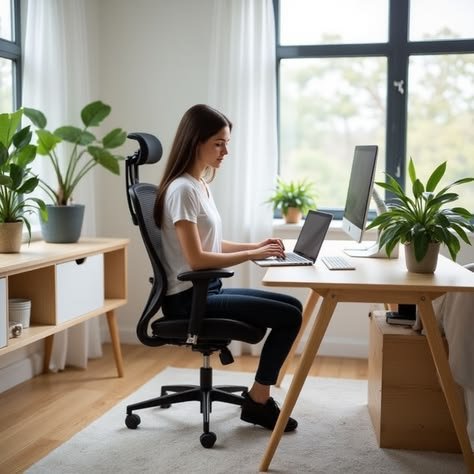
- Elevate the laptop on a stand to the height of your eyes
- Link an external keyboard and mouse
- Your neck is neutral, your wrists are flat, and your posture improves instantly
In fact, this one change is recommended by nearly every ergonomic advisor to remote teams today.
Tip 5: Stop Working in the Corner — Get Out of Dead Zones
Corners seem to make sense. They are cozy. They use space efficiently. They feel private.
Designers almost universally steer clear of putting desks in corners. Here is why.
The Acoustics Problem
Sound bounces differently in corners. Two walls meet and act to focus reflected noise. If you make lots of calls, a corner desk amplifies background echo and room noise in a way that an open-wall arrangement doesn’t.
Even if your room is quiet, corners capture the subtle hum of electronics, HVAC systems and street noise in a way that’s noticeably worse than an open-wall placement.
The Airflow Problem
Air circulation is often limited in corners. Traveling air enters rooms, not snug corners. If you are sitting in a corner for eight hours a day, chances are you are getting less fresh air circulation around your workspace.
Poor air quality is directly correlated to cognitive fatigue and decreased concentration — a consideration many remote workers have not taken into account.
The Constriction Effect
Sitting in a corner creates a visual field of mostly wall. This is known in the design world as the constriction effect. Your eyes have nowhere exciting to go. There is no depth to rest on.
This builds up to mental fatigue in a subtle but measurable way over long work sessions. Putting your desk against a wall — as opposed to tucked into a corner — provides natural restful points for the eyes and more visual space.
The Better Alternative
Rather than a corner, put your desk on the longest wall of the room with a view toward the door or window. This gives you:
- Better acoustics
- Better airflow
- Better visual field
- And the command position described in Tip 2
How All 5 Tips Work Together
The real strength of these placement principles comes when you combine them.
Consider the optimal remote desk location as one unified decision:
- Desk lines the longest wall (not a corner)
- Window is to the side of you, not in front or behind
- Solid wall is behind you
- Without turning, you can already register the door
- Monitor is at arm’s length — top of screen at eye level
When all five are in place at the same time, it’s a striking departure from the average home office setup. The space feels calmer. Work seems easier to begin and carry on with. Video calls look polished. Your body feels better at the end of the day.
How Designers Do Things Differently From Everyone Else
You may ask yourself: why do designers get this right, and most remote workers do not?
The answer is training in spatial thinking.
Designers are trained to think of a room as a system. Each element influences every other element. Light affects psychology. Sound affects focus. Sight lines affect stress. Air circulation affects energy.
Most people establish a home office by finding the nearest available flat surface and placing their computer upon it. That’s the whole decision process.
Before anything goes anywhere, designers ask different questions:
- Where is natural light coming from, and at what time of day?
- What does it look like from this area — both in the foreground and background?
- What’s behind me visible to people on calls?
- What sounds will come into this space and from which direction?
- Does this position feel exposed or secure?
These are not complicated questions. But they are the difference between a home office that drains you and one that genuinely supports your best work.
5 Common Desk Placement Mistakes You Should Stop Today
Here’s a quick rundown of the most common mistakes — and how to avoid them.
Mistake: Desk shoved flush against a corner Why it hurts: Debilitating acoustics, stifled airflow, visual constriction Fix: Move desk to the longest empty wall available
Mistake: Sitting with your back to the door Why it hurts: Ongoing low-level alertness, lack of deep focus Fix: Face your desk toward the entrance or use a mirror
Mistake: Window directly behind the monitor Why it hurts: Glare on screens, eye strain, dreadful lighting for video calls Fix: Move desk so window is to the side
Mistake: Monitor right up against the wall Why it hurts: Screen too close, eye fatigue, neck strain Fix: Pull desk out slightly, or add a monitor arm
Mistake: Messy or window-facing background on calls Why it hurts: Unprofessional appearance, camera struggling with exposure Fix: Position desk so a clean wall is behind you
Making It Work in a Small Apartment or Studio
Not all of us have a full home office. There are many remote workers who work from a studio apartment, a corner of their bedroom or even the living room.
The principles are still valid — they simply need to be adapted.
Here is how designers tackle desk placement in a small space:
Floating wall placement — Rather than a corner, place the desk perpendicular to or along the longest blank wall. Even a small desk oriented like this enjoys improved airflow and a less pinched view out.
Temporary command position — You might not be able to face the door at all times in a studio. As a remedy, angle your chair slightly toward the entrance when you need to reset. Even occasional awareness of the doorway helps.
Backdrop creation — If the wall behind you is shared with a kitchen or living room, create a visual “backdrop zone” via bookshelf, a room divider or large piece of artwork that will make calls look intentional.
Lighting investment — When working with a small space that doesn’t have the ideal window placement, use a quality key light positioned slightly to the front and to either side. It is okay to use a ring light, however a desk-mounted key light will look much more natural.
Small spaces reward creative thinking about placement. It’s not about perfection — it’s about incorporating as many of the five principles in your space as you can.
How Getting Desk Placement Right Pays Off Long-Term
This isn’t a matter of aesthetics or comfort alone. Workspace placement affects real, measurable outcomes.
Reduced physical pain — Proper monitor distance and height reduces neck, shoulder, and eye strain. These are the most common physical complaints among remote workers.
Better video presence — A proper background and lighting setup is definitely going to make you look more professional and engaged. In a remote-first work environment, your appearance on camera really matters.
Improved focus depth — A seated command position with closed-back placement allows for extended sustained focus. Many of those who make these changes say they are able to work in longer stretches without losing focus.
Less end-of-day fatigue — Your brain is not expending energy on background spatial scanning, giving you more mental energy at the end of the day. This is one of the most underrated benefits of good workspace placement.
Improved sleep — Reduced physical strain, complemented with less mental exhaustion through the workday, extends to improved recovery through the evenings and better quality sleep.
These are not small gains. They accrue over weeks and months of daily work.
Remote Desk Life: Desk Placement FAQs
Q: Is desk placement an actual thing that affects productivity, or is this all interior design talk?
A: The evidence is solid. Research in the fields of environmental psychology and workplace design consistently demonstrates that spatial variables — direction of light, line of sight, ambient noise, positional security — influence one’s ability to concentrate, levels of stress hormones and work output. Remote desk life desk placement is not aesthetic advice — it’s functional design.
Q: What if I have only one possible spot for the desk in my apartment?
A: Even within a tight space, you can improve at least one or two of the five factors. The corner position can become a wall position if you move the desk a few inches. Adjusting monitor height costs nothing. No matter where the desk is, adding a small key light adds to your video setup. Implement what you are able — any progress is progress.
Q: Is the command position real or design folklore?
A: It’s rooted in real psychology. The underlying principle — that when we cannot survey a room’s entry, we remain in a state of background vigilance — is documented in psychological studies of stress and attention. The term was popularised by feng shui, but the phenomenon reflects real psychology about how the human nervous system reacts to spatial exposure.
Q: How far should my desk be from the window?
A: There are no hard-and-fast rules about distance. The main consideration is angle, not distance. Your desk needs to be positioned such that the window is approximately to your side — not out in front of you, or behind you. In a small room where the window is nearby, a light-diffusing blind or frosted window film lowers glare while still admitting natural light.
Q: By positioning my desk well, can I improve video calls without buying new equipment?
A: Yes — significantly. Just moving your desk to face a wall and positioning natural light to your side will instantly improve how you look on calls. Most of the time, camera quality issues in home setups are not a camera problem — they are a lighting and background problem. Fixing placement is free and often results in better quality than buying a new webcam.
Q: How should I place desks at home if I share an office with a partner?
A: The biggest challenge when two people are working out of the same space is keeping sight lines from competing with one another. Place desks so that each person is seated facing a wall, not each other. Do not set desks directly across from each other — this is visually distracting and breaks concentration for both parties. In a shared room, an L-shape against two different walls typically works quite well.
Q: Does the direction I face (north, south, east, west) matter?
A: Not generally, no — at least not in the way popular belief sometimes thinks. What matters is where your specific windows are and what time of day the light comes from. In the northern hemisphere, north-facing windows can lead to steady, diffused light throughout the day — often ideal. East-facing windows offer fierce morning sunlight. West brings afternoon glare. These factors are notable but secondary to the five placement principles above.
The Setup Most Remote Workers Forget to Optimize
Working remotely gives you something that offices rarely provide: complete control over your environment.
Most people exercise that control at purchasing time — a better chair, a nicer monitor, a standing-desk converter. These can all help.
But the placement decisions in this guide are free. Shifting your desk away from the corner costs nothing. Repositioning so the window is at your side takes five minutes. There are no tools involved with angling your setup so it points toward the door.
These are the choices that interior designers, ergonomic specialists and productivity researchers endlessly recommend as high-impact and low-effort.
Remote desk life desk placement is the foundation of everything. Get the groundwork right, and everything else on top of that — your focus, your health, your video presence, your daily energy — becomes easier.
The five tips are simple. Perpendicular to the window. Facing the door. Solid wall behind you. Set your screen at arm’s length and eye level. Away from the corner.
Apply them together. Notice the difference.
This article aims to inform remote workers of evidence-backed design principles that can help improve a home workspace in practical ways.