I still remember the embarrassment. It was a client call I’d been preparing for all week — slides ready, notes rehearsed — and within the first 30 seconds, my client asked, “Is someone doing construction behind you?” There was no construction. That was just my ceiling fan rattling and my laptop mic picking up everything in the room.
That one call pushed me to completely rethink my home office setup. Not just for audio, but for video, lighting, posture, focus — the whole thing. And over the past couple of years, I’ve tested a ridiculous number of setups, wasted money on things that didn’t help, and finally landed on what actually works.
Here’s what I learned — the practical, no-fluff version.
1. Get Your Camera at Eye Level (Seriously, This One Thing Changes Everything)
Before I fixed this, every Zoom call had me looking slightly downward at my laptop screen. I thought nothing of it. Then a colleague sent me a screenshot from a recording and I genuinely didn’t recognize myself — double chin, weird angle, looked like I was barely paying attention.
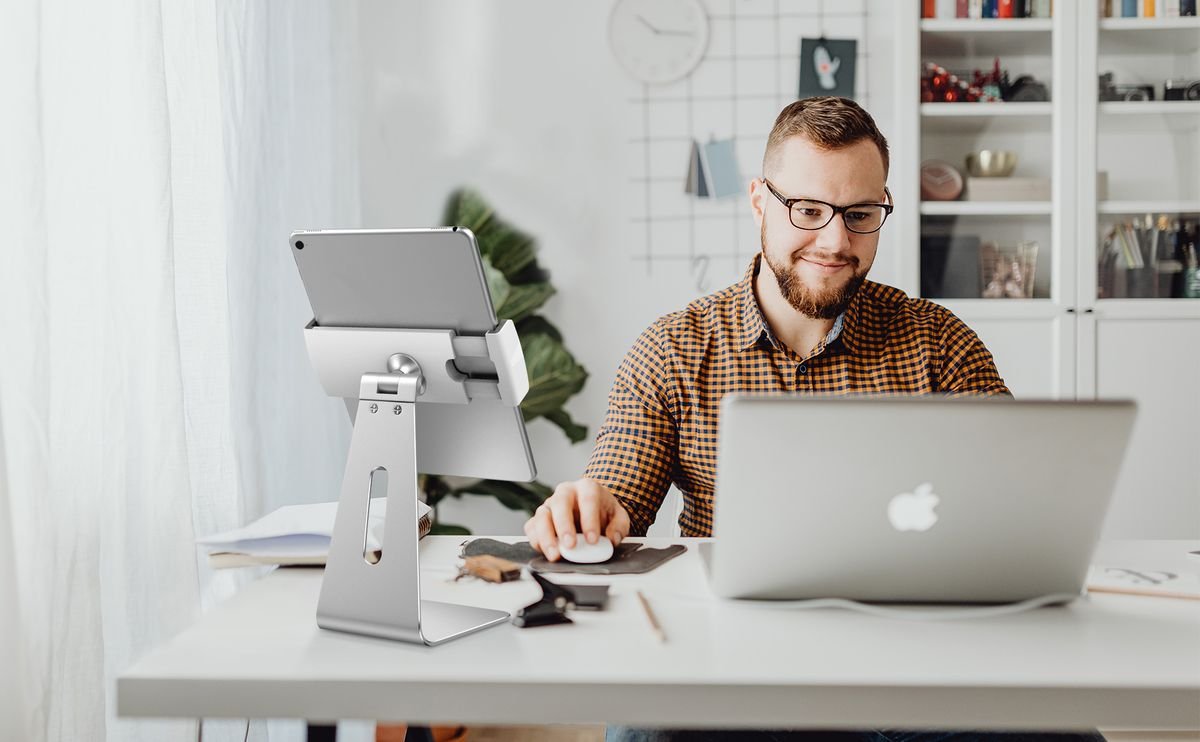
The fix is simple: raise your camera to eye level. You can use a laptop stand, a stack of books, or a dedicated monitor arm. I went with the Lamicall Laptop Stand (around $25) and the difference was immediately noticeable — I looked more engaged, more professional, and people stopped asking if I was okay.
If you’re on a webcam rather than your laptop camera, mount it right on top of your monitor. The Logitech C920 is still one of the best value webcams out there. It clips on, sits at eye level, and the image quality is miles ahead of most built-in cameras.
Quick tip: Before your next call, open your camera app and check your angle. If you can see the ceiling, your camera’s too low.
2. Fix Your Lighting Before Anything Else
I spent $150 on a fancy webcam once. Didn’t make much difference. Then I spent $35 on a ring light and looked like a completely different person on calls.
Lighting matters more than your camera. Here’s the basic rule: light should come from in front of you, not behind you. If you’re sitting with a window behind you, you’ll appear as a dark silhouette to everyone else on the call — which looks both unprofessional and a little ominous.
Options that work:
| Setup | Cost | Best For |
|---|---|---|
| Ring light (clip-on) | $20–$40 | Quick, easy improvement |
| Softbox light panel | $50–$100 | More natural, even light |
| Natural window light | Free | Best quality, but weather-dependent |
| LED desk light with diffuser | $30–$60 | Dual purpose (work + calls) |
I personally use the Elgato Key Light Air now — it’s pricier at around $100, but you can adjust brightness and color temperature right from your phone. On cloudy days I bump up the warmth slightly and it keeps the tone consistent.
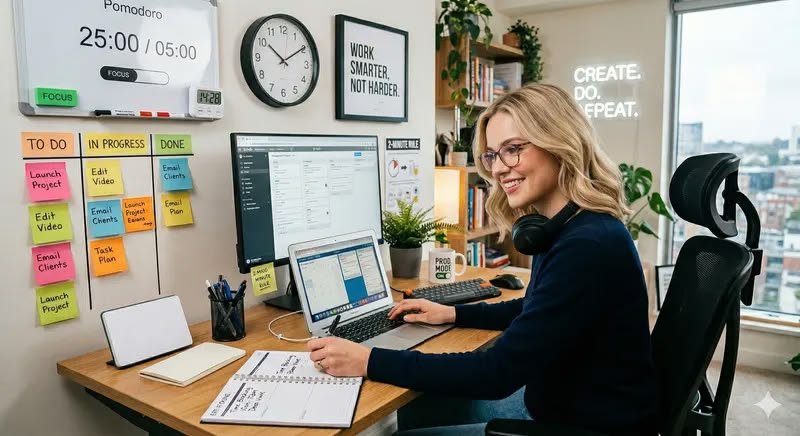
3. Sort Out Your Background — It’s Part of Your Personal Brand
Your background tells people a lot about you before you even speak. I learned this the hard way when I had a call with a potential client and spent 20 minutes cleaning up just one corner of my room to make it “presentable.” That’s wasted time every single week.
You have three solid options:
Option A: Real, curated background. A bookshelf with a few books, a plant, maybe a clean wall. This looks natural and human. People trust it.
Option B: Zoom virtual background. Works fine if your lighting is good and you have a solid-colored wall behind you. Patchy virtual backgrounds (where your arm disappears) just look sloppy.
Option C: A physical backdrop. I know someone who bought a cheap muslin backdrop from Amazon, set it up on a portable stand, and it instantly looked cleaner than 90% of people on their calls. Costs around $30–$50.
Whatever you choose, commit to it and keep it consistent. Familiarity builds trust over time, especially with recurring clients.
4. Your Microphone Is More Important Than Your Camera
People will forgive blurry video. They will not forgive bad audio.
If someone has to ask you to repeat yourself twice in a 30-minute call, that’s an exhausting experience for everyone involved. And the built-in mic on most laptops? It picks up every keystroke, every air conditioner hum, every chair squeak.
You don’t need to go full podcast-host mode. A budget-friendly upgrade like the Blue Snowball iCE (~$50) or the FIFINE USB mic (~$30) will get you 80% of the way there. If you want something cleaner, the Blue Yeti or Rode NT-USB Mini are the next step up.
Alternatively, a solid pair of earbuds with a built-in mic (like the Apple EarPods or Samsung Galaxy Buds) can do the job surprisingly well — they’re close to your mouth, which reduces background noise significantly.
And if you’re not ready to spend anything: close your door, turn off your ceiling fan, and move closer to your laptop mic. Small changes, real difference.
5. Use a Dedicated Work Zone — Even in a Small Space
Working from the same spot where you eat, watch Netflix, and sleep is a productivity killer. Your brain doesn’t know when to “switch on” and when to switch off.
I wrote more about how specific workspace organization tips for minimal setups can actually change how focused you feel — even in a tiny apartment. The short version: even a corner with a specific desk and a specific chair signals your brain that it’s “work time.”
If you’re working from the kitchen table, try to at least have a dedicated kit — a small tray or bag with your laptop, notebook, and charger — that you set up every morning and pack away every evening. Ritual matters.
6. Cable Management: Boring but Life-Changing
I used to have seven cables snaking across my desk. Charger, monitor cable, USB hub, microphone, keyboard, mouse, lamp. It was a mess and it made me feel chaotic every single morning.
Cleaned it all up in an afternoon using:
- Cable clips (adhesive, stick to the back of the desk) — under $10
- Velcro ties — a pack of 50 costs about $6
- A small cable box to hide the power strip
Now everything runs along the back edge of my desk, out of sight. My desk actually looks clean in video calls, and weirdly, it makes me feel more in control of my day. Small thing, big psychological effect.
7. Invest in an Ergonomic Chair — Your Back Will Thank You Later
This is the one I put off for too long because chairs feel like a boring purchase. I was sitting in a dining chair for eight months. By month four, I had constant lower back pain that I was blaming on “bad posture” when really I just had a terrible chair.
You don’t have to spend $1,000 on an Aeron. The Hbada ergonomic chair (~$150) and the Gabrylly mesh chair (~$200) are genuinely solid options at a reasonable price. What you’re looking for:
- Adjustable lumbar support
- Armrests that adjust in height
- Seat height adjustment
- Breathable mesh back (especially important in warmer climates)
If a new chair isn’t in the budget right now, a lumbar support cushion ($20–$40) on your existing chair can buy you some time. I used one for two months before upgrading and it helped noticeably.
For more on this, these ergonomic tips for home office workers go deeper into what adjustments actually matter and what’s just marketing fluff.
8. Reduce Notification Chaos Before Every Call
I was mid-presentation once when my Slack pinged loudly, my phone buzzed, and a calendar reminder popped up covering half my screen. My train of thought evaporated immediately.
Here’s my pre-call ritual now (takes about 90 seconds):
- Close unnecessary browser tabs
- Put phone face down or enable Do Not Disturb
- Enable Focus Mode on Mac or Focus Assist on Windows
- Mute Slack/Teams notifications
- Close email client
You can also use tools like Krisp (noise-canceling AI app) or NVIDIA RTX Voice if you have a compatible GPU — these remove background noise in real time and are surprisingly effective.
9. Two Monitors (or One Good One) Changes Everything
Working from just a laptop screen — especially on calls — means you’re constantly switching between your notes, the call window, your slides, and whatever else you have open. It’s friction that adds up fast.
A second monitor lets you keep the call on one screen and your notes or presentation on the other. Game changer.
If a second monitor isn’t possible, at least consider upgrading your primary display. A 24–27 inch monitor gives you enough real estate to have your Zoom window and another app side by side comfortably.
I use a Dell P2422H (24 inch, ~$180) as my main monitor and keep my laptop on a stand to the side for secondary use. It’s not the flashiest setup, but it’s efficient.
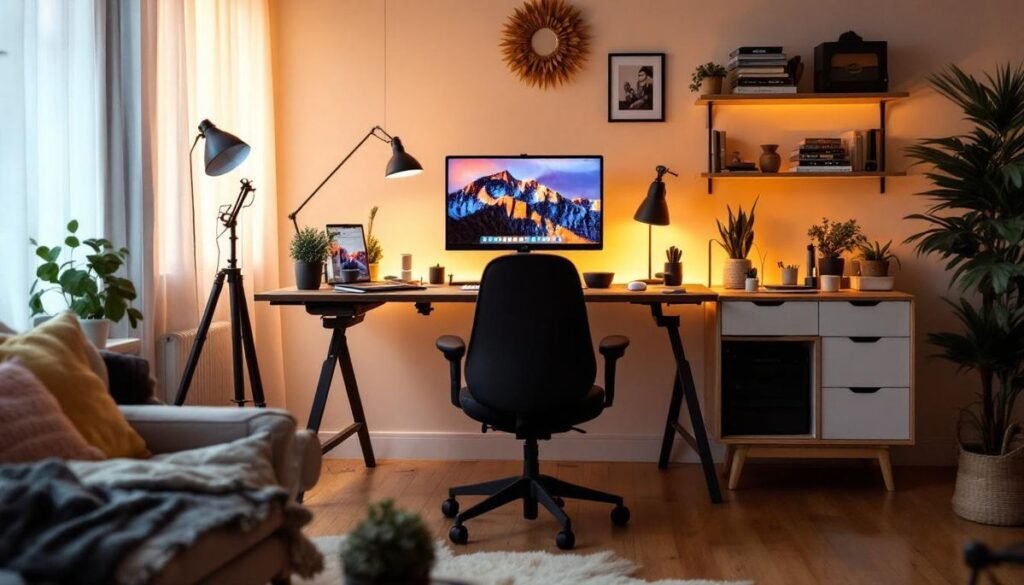
10. Control Your Room Temperature and Ambient Noise
This one sounds weird until you realize how much your environment affects your performance on calls and your focus in general.
If your room runs hot (especially in summer), cognitive performance drops. You make slower decisions, you feel foggy, and it shows. A simple desk fan, a small air cooler, or even just keeping the window open in the morning can make a surprising difference.
Ambient noise is trickier. If you live somewhere noisy — street traffic, neighbors, family members — consider:
- Noise-canceling headphones for listening (Sony WH-1000XM5 or the more affordable Anker Q45)
- Krisp or NVIDIA RTX Voice for what your mic picks up
- White noise machines or apps like Noisli for focus between calls
I also keep a notepad by my desk specifically for “brain dump” moments — when something pops into my head mid-call that I don’t want to forget. Writing it down immediately lets me refocus without worrying I’ll lose the thought.
11. Create a “Call Ready” Checklist
After implementing all of the above, I still had occasional rough calls — not because of technical problems, but because I’d forgotten to check something simple. Camera smudged. Mic not set as default. Wrong virtual background from a previous test.
So I made a simple checklist. Sounds excessive but it takes 60 seconds and has saved me from embarrassment multiple times.
My Pre-Call Checklist:
| Check | Status |
|---|---|
| Camera at eye level ✓ | |
| Lighting turned on ✓ | |
| Background clean/set ✓ | |
| Mic set as default audio input ✓ | |
| Notifications silenced ✓ | |
| Relevant tabs/docs open ✓ | |
| Headphones charged ✓ | |
| Door closed ✓ |
You can keep this as a sticky note on your monitor, a note in Notion, or even a reminder in your calendar that fires 10 minutes before scheduled calls.
Common Mistakes I’ve Seen (and Made)
Buying gear before fixing the basics. A $200 webcam won’t help if your lighting is terrible and your background is chaotic. Always fix environment first.
Ignoring internet stability. Wifi drops during important calls are avoidable most of the time. If you’re on Wifi, sit closer to the router. Better: use an ethernet cable during important calls if you have the option. The difference in stability is dramatic.
Trying to fix everything at once. Pick one thing from this list, implement it, notice the difference, then move to the next. Overhauling everything in a weekend sounds great but usually leads to nothing sticking.
Over-tidying just before calls. If your desk is chaotic except for one “clean corner” you angle yourself into, that’s a sign your actual workspace isn’t working for you. Sustainable setups keep your desk clean every day, not just on call days.
What Your Setup Actually Says About You
At the end of the day, your remote setup isn’t just about productivity. It’s communication. Before you say a single word on a Zoom call, your background, your lighting, and your audio quality are already telling people something about how seriously you take your work.
I’m not saying you need a studio setup. Most of the improvements I’ve made cost under $100 total, spread out over time. But intentionality matters. A clean background, decent light, and a mic that doesn’t make you sound like you’re in a submarine — that combination will make you stand out on calls in the best possible way.
Start with the camera height. Fix the lighting next. Then audio. By the time you’ve done those three things, you’ll already be in the top 20% of home office setups on most video calls.
Thinking about leveling up your home workspace further? Check out these remote desk setup essentials every remote worker needs — practical gear picks and setup ideas that are actually worth the investment.