I remember the exact moment I realized my home office setup was slowly destroying me.
It was a Tuesday afternoon, about eight months into working from home full-time. I’d been sitting at my kitchen table — yes, the kitchen table — for six hours straight, hunched over a laptop that was sitting flat on the surface. My neck felt like someone had poured concrete into it. My lower back was screaming. My wrists ached in this dull, persistent way that I kept ignoring because, well, I had deadlines.
I finally stood up to get a glass of water and genuinely had trouble straightening up.
That was my wake-up call.
Over the next year, I went on a bit of an ergonomic upgrade journey — some things were game-changers, some were overhyped, and a few I wish I’d done from day one. Here’s what I actually learned, what I’d spend money on again, and what’s truly worth it.
1. A Proper Ergonomic Chair — The Foundation of Everything
I cannot stress this enough: your chair is the single most important investment you’ll make for remote work.
I spent the first three months in a dining chair. Then I bought a cheap $80 “office chair” from a random online store. Both were mistakes that cost me in chiropractor bills.
The difference a real ergonomic chair makes is almost embarrassing. We’re talking lumbar support that actually adjusts to your spine, seat depth that fits your leg length, and armrests that let your shoulders relax instead of creep up toward your ears.
What to look for:
- Adjustable lumbar support (height AND depth)
- Seat height range that suits you
- Armrests that adjust in height, width, and pivot
- A seat pan that tilts
Brands like Herman Miller Aeron, Steelcase Leap, and the more budget-friendly Autonomous ErgoChair are popular for real reasons. I personally landed on the Steelcase Leap after testing three chairs. Yes, it cost over $1,000. No, I don’t regret it even slightly.
If that’s too steep right now, the Flexispot BS8 or the Branch Ergonomic Chair sit around $300–400 and punch well above their price.
2. Monitor at Eye Level — Stop Craning Your Neck
Here’s the thing most people don’t realize: your monitor height is silently wrecking your neck and upper back.
The top of your screen should be roughly at eye level when you’re sitting up straight. For most laptop users, the screen sits way too low, forcing your head to angle down for hours. Over weeks and months, that adds up to serious neck strain.
The fix is surprisingly affordable.
A simple monitor stand or monitor arm solves this instantly. I went with a dual monitor arm (VIVO makes solid, affordable ones) and it was honestly one of the most satisfying upgrades I made. Suddenly my desk had actual space underneath, my posture straightened up naturally, and the neck tension started easing within a week.
If you’re on a laptop exclusively, a laptop riser like the Rain Design mStand or even a basic adjustable stand gets the screen up to where it needs to be. Pair it with an external keyboard and mouse (covered next) and you’ve got a proper setup.
| Screen Position | Effect on Body |
|---|---|
| Below eye level | Neck bends down, causing strain |
| At eye level | Neutral neck position, less fatigue |
| Above eye level | Forces head back, eye strain |
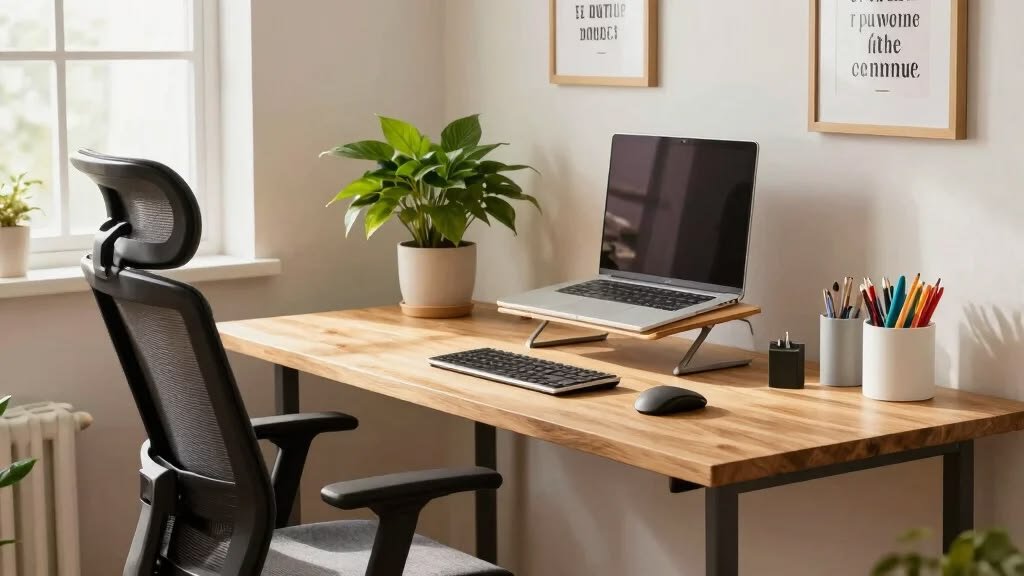
3. External Keyboard and Mouse — Your Wrists Will Thank You
Once you raise your laptop screen, you have to use an external keyboard and mouse. There’s no way around it — you can’t type on a screen that’s two feet away from you.
But beyond that, the type of keyboard and mouse matters more than most people think.
I spent two years using a regular flat keyboard and a standard mouse before developing mild wrist discomfort. Switched to a low-profile mechanical keyboard (Keychron K3) and a vertical mouse (Logitech MX Vertical), and the difference was immediate. Not overnight dramatic — but within a few weeks, that persistent wrist tension was just… gone.
Vertical mice keep your hand in a “handshake” position rather than the palm-down twist that flat mice force. It felt weird for about three days. Then it felt completely natural.
If you’re already feeling wrist or hand discomfort, this is where I’d spend money first before even thinking about fancy chairs.
For more ideas on setting up your workspace efficiently, 11 powerful remote desk life setup essentials every remote worker needs covers some excellent gear recommendations worth checking out.
4. A Standing Desk or Desk Converter — Movement Is Medicine
I was skeptical about standing desks for a long time. Felt like a trendy thing people bought to feel productive. Then I tried one.
The goal isn’t to stand all day — that’s actually just as bad as sitting all day. The goal is alternating between sitting and standing throughout the day. Research consistently shows that breaking up long sitting periods reduces fatigue, improves circulation, and can even sharpen focus.
I started with a desk converter (a device that sits on top of your existing desk and raises your monitor and keyboard). The FlexiSpot M7 is a popular one. It’s a solid way to test if you’ll actually use standing mode before committing to a full electric desk.
After six months of loving it, I upgraded to a full electric sit-stand desk. The Uplift V2 is excellent. Flexispot also makes very reliable options at lower price points.
Quick tip: Set a timer or use an app like Stretchly to remind you to switch positions every 45–60 minutes. Otherwise you’ll forget.
5. Proper Lighting — This One’s Sneaky
Bad lighting causes more problems than people realize — eye strain, headaches, and even mood dips throughout the day.
Two main issues to fix:
Glare on your screen. Position your monitor so windows are to the side, not directly in front or behind. A window directly behind you creates glare; one in front creates squinting.
Inadequate ambient light. Working in a dim room with a bright screen forces your eyes to constantly adjust. This is exhausting without you even noticing it.
I added a bias light behind my monitor (a simple LED strip on the back of the screen) which dramatically reduces eye fatigue during evening work sessions. The Govee or Elgato Key Light setups are popular for video calls too.
A desk lamp with adjustable color temperature is also worth it — warm light for focus, cooler light to stay alert. The BenQ ScreenBar is expensive but exceptional; the TaoTronics alternatives work well at half the price.
6. Wrist Rest and Desk Pad — Small Things, Real Difference
This sounds almost too simple, but hear me out.
A wrist rest for your keyboard and mouse keeps your wrists in a neutral position instead of bending up at an angle. Gel versions are comfortable; memory foam ones tend to last longer. The Kensington Duo Gel Wrist Rest has been on my desk for two years.
A large desk pad (sometimes called an extended mouse pad) does a few things: it protects your desk, gives your mouse smooth and consistent tracking, and honestly just makes the whole setup feel more intentional and clean.
I went with a 36″ leather-style desk pad and it transformed how my desk felt to work at. It’s one of those minor upgrades that has an outsized psychological effect — the desk just feels more like a proper workspace.
7. Headset or Earbuds with Good Microphone — For Calls That Don’t Drain You
If you’re on video calls regularly, audio quality matters more than you think — not just for others, but for you.
Earbuds create fatigue. Using AirPods or similar in-ear buds for three-hour stretches is uncomfortable, especially over time. A good over-ear headset with proper cushioning distributes pressure across your ear rather than pressing a driver directly against your eardrum.
The Jabra Evolve2 55 is what a lot of remote professionals swear by. On the more affordable end, the Anker Soundcore Q45 is genuinely solid.
Noise cancellation is worth it if you share space with anyone — partner, kids, roommates. The mental energy you save by not constantly filtering background noise during calls is very real.
Also: a good microphone means your colleagues don’t have to strain to hear you, which reduces the subtle stress of every call. The Blue Yeti is a classic desk mic if you want to go all in; the HyperX SoloCast is a great budget option.
For practical ideas on building focus into your daily workflow, 6 proven remote desk life focus habits I wish I knew earlier is a genuinely useful read.
8. Footrest — The Upgrade Nobody Talks About
I didn’t think I needed a footrest. Then a friend mentioned it, I tried one, and now I can’t work without it.
Here’s the thing: if you’re shorter than average (or even average height), your feet often don’t rest flat on the floor when your chair is adjusted correctly for your desk height. This creates pressure under your thighs and cuts off circulation.
A footrest solves this by bringing the floor to your feet rather than forcing your chair down (which throws off your desk height relationship).
The Humanscale FM300 is a popular choice. There are also rocking footrests that let you shift weight and keep subtle movement going, which helps with blood flow during long sessions.
Sounds minor. It really isn’t.
9. Cable Management — Clutter Creates Stress (Seriously)
This one is psychological as much as physical.
A desk covered in tangled cables creates a low-level visual noise that affects focus and mood. It sounds dramatic, but it’s well-documented — cluttered environments increase cortisol levels and reduce concentration.
Practical cable management doesn’t have to be expensive or complicated:
- Cable clips along the back edge of your desk (3M Command strips work great)
- A cable management tray mounted under the desk to hold power strips and excess cable
- Velcro cable ties (way better than zip ties — reusable and adjustable)
- Cable sleeves for bundling multiple cables that run the same path
I spent about two hours one Saturday sorting cables and mounting a tray under my desk. The result looked so clean that I actually wanted to sit down and work. The environment just felt calmer.
If you want a deeper look at keeping things neat, 6 proven remote desk life cable management tricks that look clean has some clever ideas worth trying.
10. Blue Light Glasses or Screen Filter — Protect Your Eyes Long-Term
Okay, the science on blue light is actually a bit contested — it’s not fully proven that blue light specifically causes eye strain. What is proven is that staring at screens for eight hours causes digital eye strain, and many people find blue light glasses genuinely helpful for that.
My experience: I started using a pair of Pixel Eyewear blue light glasses about eighteen months ago. I can’t give you a controlled study result, but I can tell you that my end-of-day headaches became less frequent. Whether that’s the blue light filtering or just the reminder to blink more when I put them on — I’ll take it.
If you prefer a software approach, f.lux (free) and Iris automatically shift your screen’s color temperature toward warmer tones in the evening, reducing the sleep-disrupting effects of screen light.
The 20-20-20 rule is also worth building into your routine: every 20 minutes, look at something 20 feet away for 20 seconds. It genuinely helps.
Common Mistakes Worth Avoiding
A few things I got wrong that you don’t have to:
Buying cheap first “to test it out.” I wasted money on two bad chairs before committing to a good one. Sometimes the test is just committing.
Setting things up once and never revisiting. Your body changes, your work changes. Reassess your setup every few months.
Focusing only on gear and ignoring habits. The best ergonomic chair can’t save you if you sit in it for ten hours straight without moving. Take breaks. Stretch. Get up.
Ignoring early warning signs. That mild wrist ache, that occasional neck stiffness — these are signals. Address them before they become injuries.
A Quick Cost vs. Impact Overview
| Upgrade | Approximate Cost | Impact Level |
|---|---|---|
| Ergonomic Chair | $300–$1,200 | ⭐⭐⭐⭐⭐ |
| Monitor Arm / Riser | $30–$150 | ⭐⭐⭐⭐⭐ |
| Vertical Mouse | $40–$100 | ⭐⭐⭐⭐ |
| Sit-Stand Desk | $250–$800 | ⭐⭐⭐⭐⭐ |
| Proper Lighting | $30–$200 | ⭐⭐⭐⭐ |
| Wrist Rest + Desk Pad | $20–$60 | ⭐⭐⭐ |
| Quality Headset | $80–$300 | ⭐⭐⭐⭐ |
| Footrest | $30–$100 | ⭐⭐⭐ |
| Cable Management | $20–$50 | ⭐⭐⭐ |
| Blue Light Glasses / f.lux | Free–$80 | ⭐⭐⭐ |
You don’t have to do all of this at once. Start with the chair and monitor position — those two alone will make a noticeable difference within a week.
Then work your way down the list as your budget allows. Think of each upgrade not as spending money, but as investing in the tool you use eight-plus hours a day, every day. Your body is that tool.
The version of me hunched over a kitchen table would have spent way less on chiropractors if I’d known what I know now. You don’t have to learn those lessons the hard way.
Also worth reading: 8 proven remote desk life comfort hacks for long work hours — practical tips that complement everything above, especially if you’re clocking serious hours at your desk.