My back gave out on a Tuesday afternoon, about eight months into working from home full-time.
Not dramatically — no sharp pain, no emergency room visit. Just this dull, persistent ache that crept from my lower back up to my shoulders and refused to leave. I’d been sitting at a kitchen chair pulled up to a dining table for hours every day, thinking “it’s fine, I’ll fix it eventually.”
Eventually came in the form of three weeks of physiotherapy and a very firm lecture from my physio about posture.
Here’s the thing — most remote workers I know went through some version of this. You cobble together a home setup, focus on getting the work done, and completely ignore what the setup is doing to your body. Then something starts hurting and you realize you’ve been working in what is essentially a slow-motion injury machine.
So these tips come from real experience — what I changed, what actually helped, what felt like overkill, and where most people (including me) mess up first.
1. Your Chair Is the Foundation — Stop Ignoring It
Before you buy a monitor arm or a fancy keyboard, fix your chair situation. Seriously. Everything else builds on this.
The biggest mistake I made was using a chair that looked fine but had zero adjustability. No lumbar support, arms that were either too high or too low, and a seat pan that was slightly too deep for my height. I thought I was sitting “correctly” but my body was quietly compensating the entire time.
What actually helped:
- Seat height: Your feet should rest flat on the floor. Thighs roughly parallel to the ground. If your chair doesn’t go low enough, that’s a problem.
- Lumbar support: The curve of the backrest should meet the natural inward curve of your lower back — not your mid-back, not your upper back. If your chair doesn’t do this, a $15 lumbar cushion from Amazon genuinely works.
- Armrests: Elbows should rest at roughly 90 degrees without you having to shrug your shoulders up or let them drop. If your armrests force your shoulders into an awkward position, lower them or remove them entirely.
I eventually moved to a secondhand Herman Miller Aeron I found on Facebook Marketplace. Expensive even used, but the difference was immediate and obvious. That said, plenty of people get great results from budget chairs like the Hbada or Sihoo if they’re adjusted properly.
2. Monitor Height Is Probably Wrong — Here’s How to Actually Fix It
Look straight ahead right now. Where is your screen?
If it’s below your eye level — which it is for most laptop users — you’ve been tilting your chin down for hours every day. That position puts around 27 pounds of load on your cervical spine. Your head weighs about 10-12 pounds neutral, and that load increases dramatically as the angle increases. It adds up fast.
The fix is simple: the top third of your screen should sit at or just below your natural eye line when you’re sitting up straight.
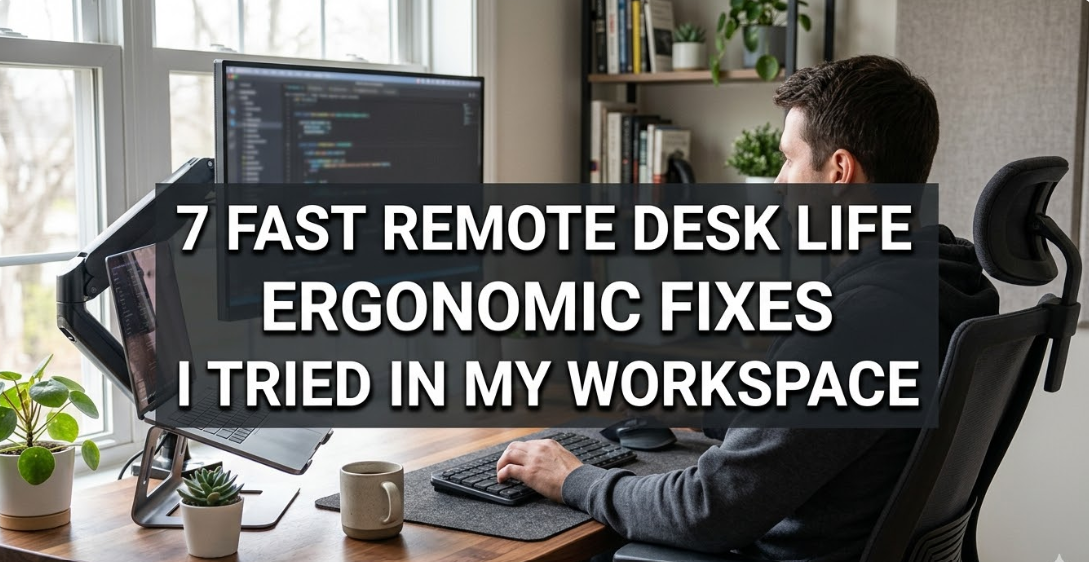
For laptop users, this means a laptop stand is non-negotiable. I use the Nexstand K2 — it’s portable, foldable, and takes about 10 seconds to set up. Pair it with an external keyboard and mouse and your neck will thank you within days.
For desktop monitor users, most people have their monitors too low. A monitor arm (I’ve used both the Ergotron LX and Amazon Basics versions — both solid) lets you dial in height, distance, and angle with real precision. Worth every rupee.
Quick distance check: Hold your arm out toward the screen. Your fingertips should just about reach it. Too close strains your eyes; too far makes you lean forward.

3. The Keyboard and Mouse Setup Most People Completely Overlook
Here’s something that took me way too long to figure out: your keyboard should be low enough that your wrists stay neutral — not bent upward.
Most desks are actually too high for comfortable typing, especially if you’re shorter. When your keyboard is at desk height and the desk is at standard height, you end up with your wrists extended (bent backward) to type. Do that for six hours a day and you’re setting up conditions for wrist pain or worse.
What worked for me:
- Lower the desk if possible (standing desks with adjustable height solve this completely)
- Or lower the chair and use a footrest to compensate for floor distance
- Tilt the keyboard slightly away from you (negative tilt) rather than propping the back legs up
Mouse placement matters too. It should be right next to the keyboard at the same level — not pushed to the side so your arm reaches out at an angle. Every time you reach for a mouse that’s too far away, you’re rotating your shoulder slightly. Multiplied by hundreds of times a day, that’s real strain.
If you’re dealing with wrist discomfort, a vertical mouse is worth trying. The MX Vertical from Logitech is the one I tested — awkward for the first two days, genuinely comfortable after that.
4. The 20-20-20 Rule for Eyes (And Why You Keep Forgetting It)
Every 20 minutes, look at something 20 feet away for 20 seconds. Your eye muscles — just like any other muscle — fatigue from being held in one position too long. Staring at a screen keeps them locked in a close-focus position for hours.
The problem is remembering to do it.
I tried setting phone alarms, which got annoying fast. What actually stuck for me was using an app called Stretchly (free, cross-platform) which puts a gentle overlay on your screen at set intervals reminding you to take a break. You can customize the break length and frequency.
Another thing that made a real difference: enabling Night Shift / Night Mode on my monitors. Warmer color temperature in the evening reduces the blue light hit, which was visibly affecting how tired my eyes felt by 6 PM.
Also — clean your screen. Dust and smudges make your eyes work harder to process what they’re seeing. Sounds minor, but try it.
5. Standing Isn’t Magic, But Movement Is
There was a period where I became convinced a standing desk would solve everything. I bought a manual crank desk (the Flexispot E1 — affordable entry point), set it up, and stood for three hours my first day.
My legs were destroyed. My lower back hurt in a completely different location than before.
Turns out, standing all day is just as bad as sitting all day. The research on this is pretty clear. What your body actually needs is position variation throughout the day.
The real benefit of a sit-stand desk isn’t that standing is better — it’s that switching between positions breaks the static loading that causes most of the damage. I now switch roughly every 45-60 minutes. Even a 10-minute standing period makes a difference.
If a sit-stand desk isn’t in the budget, just standing up and walking to get water, doing a quick stretch in the hallway, or doing a lap around your home every hour accomplishes a lot of the same thing. The goal is to stop holding any single posture for more than an hour.
Practical tools that help with this: 5 Smart Remote Desk Life Workday Routines That Boost Focus has some good structure around building movement into your actual schedule rather than hoping you’ll remember.
6. Lighting — The Invisible Culprit Behind Headaches and Eye Strain
I spent six months thinking I had chronic dehydration headaches. Turns out, I had a window directly behind my monitor creating glare, and my overhead light was flickering at a barely-perceptible frequency that my brain was registering as stress.
Lighting for a desk setup has a few rules worth knowing:
Avoid backlit windows. Light source behind your screen means your eyes are constantly adjusting between the bright background and the relatively dim screen. Move your desk so the window is to the side — ideally your left side if you’re right-handed, so the shadow of your hand doesn’t fall on your work.
Bias lighting works. A small LED strip behind your monitor (matching your screen’s color temperature) reduces the contrast between the bright screen and the dark room around it. Philips Hue Play bars are the popular option; a cheap $8 USB LED strip does roughly the same thing.
Match ambient and screen brightness. In a dim room, your screen should be dimmer. In a bright room, brighter. The automatic brightness adjustment on most modern displays helps with this, but manual calibration is more reliable.
7. Wrist and Forearm Tension Nobody Talks About
Most ergonomics advice stops at the chair and monitor. But chronic tension in the forearms and wrists is incredibly common in people who type a lot, and it goes mostly ignored until something actually hurts.
Two things that made a noticeable difference for me:
Typing technique: I was “floating” my wrists — hovering them above the keyboard in a tense position while typing. Letting them rest lightly on a wrist rest between bursts of typing (not while actively typing — that actually causes more strain) helped a lot. The Fellowes Memory Foam wrist rest is basic but effective.
Daily forearm stretching: Thirty seconds of forearm flexor and extensor stretches at the start of the day, midday, and end of day. There are good guided versions on YouTube — just search “forearm stretches for desk workers.” It feels unnecessary until you skip it for a week and notice the difference.
For people who use a mouse heavily (designers, editors), grip tension in the mouse hand is real. Periodically open your hand wide and spread your fingers while you’re reading something on screen. Breaks the continuous gripping pattern.
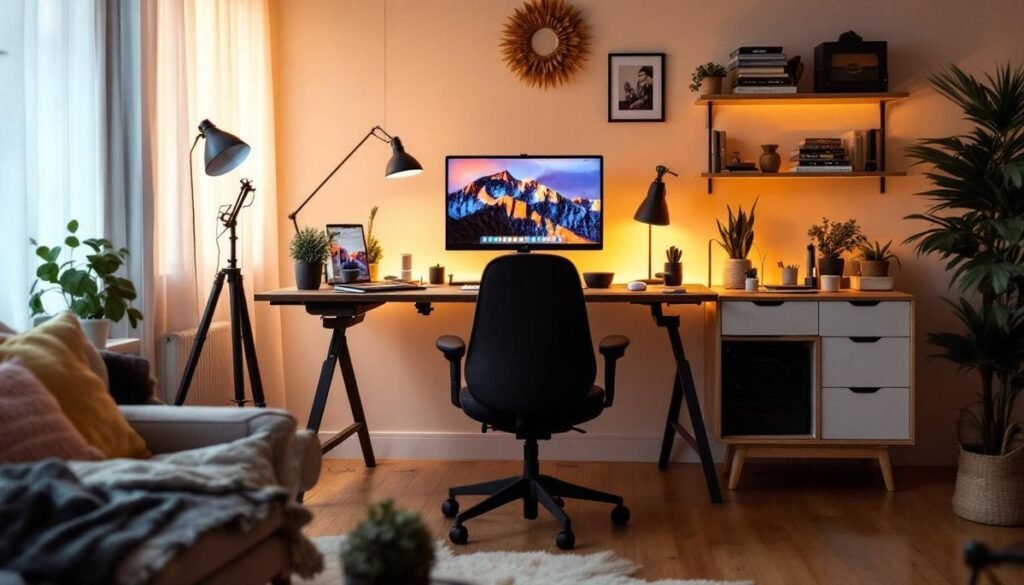
8. The Desk Organization Connection to Ergonomics
This one surprised me. I didn’t think clutter had anything to do with physical strain — but it does, indirectly.
When your desk is disorganized, you’re constantly reaching, twisting, and craning to access things that aren’t in your immediate zone. Your phone is in an awkward spot so you tilt your neck down to check it. Your notepad is off to the side so you rotate your torso to write on it. Your charger is somewhere behind your monitor so you’re leaning forward to plug in.
Small repeated movements in poor positions add up.
The fix is defining your “primary zone” — the area within easy reach without changing posture — and keeping only what you actively use in that space. Phone stand at eye level. Notepad directly in front. Water bottle accessible without reaching. 11 Powerful Remote Desk Life Organization Tips for Minimal Workspaces goes into a lot more detail on this — genuinely useful for thinking through desk layout strategically.
9. Building a Real Break Routine (Not Just Hoping You’ll Stop)
The last and honestly most important one: you need scheduled breaks, not theoretical ones.
“I’ll take a break when I finish this task” doesn’t work because tasks expand. You end up two hours in, tense, dehydrated, and wondering why your neck hurts again.
What actually works is treating breaks like appointments. Here’s the loose structure I’ve been using:
| Interval | Break Type | Duration |
|---|---|---|
| Every 20 min | Eye break (20-20-20) | 20 seconds |
| Every 50-60 min | Stand up, walk, stretch | 5-10 minutes |
| Every 2-3 hours | Away from screen completely | 15-20 minutes |
The Pomodoro technique (25 minutes work, 5 minute break) is popular and works well for some people. I personally find 50/10 more natural for deep work. The specific interval matters less than the consistency.
Hydration note: Keep water on your desk. Not to be preachy about it — but dehydration causes real cognitive and physical fatigue, and most people sitting at desks drink far less than they realize. A large water bottle you refill once or twice beats constantly forgetting small glasses.
For building better overall habits around your setup, 9 Essential Remote Desk Life Productivity Habits I Learned in 30 Days covers how small consistent changes compound over weeks in ways that feel minor until they suddenly aren’t.
Common Mistakes Worth Flagging
A few patterns I see constantly (and did myself):
- Buying ergonomic gear and setting it up wrong. An ergonomic chair adjusted incorrectly is no better than a regular chair. Spend 20 minutes reading the manual or watching a setup video. It matters.
- Only fixing one thing. If your chair is good but your monitor is too low, you’ll still hurt. Ergonomics is a system, not a single product.
- Waiting until something hurts. Most of the damage from poor posture is cumulative. Start before it hurts, not after.
- Ignoring the floor. If your feet aren’t supported — either flat on the floor or on a footrest — your pelvis tilts and your lower back compensates. Cheap footrests (even a hardcover book temporarily) make a real difference.
None of this is complicated in hindsight. Most of it is genuinely inexpensive — proper chair height adjustment costs nothing, and a laptop stand is under $30. The harder part is actually doing it instead of putting it off until your back forces the issue.
Start with the chair. Then the monitor height. Then add in movement breaks. Get those three right and you’ve solved 80% of the problem.
Also worth reading: 8 Proven Remote Desk Life Comfort Hacks for Long Work Hours — goes deeper into comfort upgrades for people logging serious hours at their desk every day.