I still remember the exact moment I realized something had to change. It was a Tuesday afternoon, around 3 PM, and I’d been working from home for about eight months straight. I went to stand up from my desk and genuinely couldn’t straighten my neck properly. Like, it was just… stuck. My lower back felt like someone had shoved a hot poker into it, and my shoulders were so tense I could’ve used them as a shelf.
That was my breaking point.
I’m not someone who splurges on fancy gear. I’d been making do with a kitchen chair, a laptop on a regular dining table, and a lot of denial. “It’s fine,” I kept telling myself. “People worked in worse conditions.”
Sure. But those people also weren’t logging 9-hour days hunched over a 13-inch screen.
What followed was three months of experimenting — some changes cost me nothing, some cost under $30, and one purchase I genuinely wish I’d made on day one. Here’s what actually worked.
1. I Fixed My Monitor Height (For Free) — And It Changed Everything
For months, I was looking down at my laptop screen. Every single hour of every single workday, my neck was angled forward and down. Turns out, that’s basically the equivalent of hanging a 10-pound weight from your head all day.
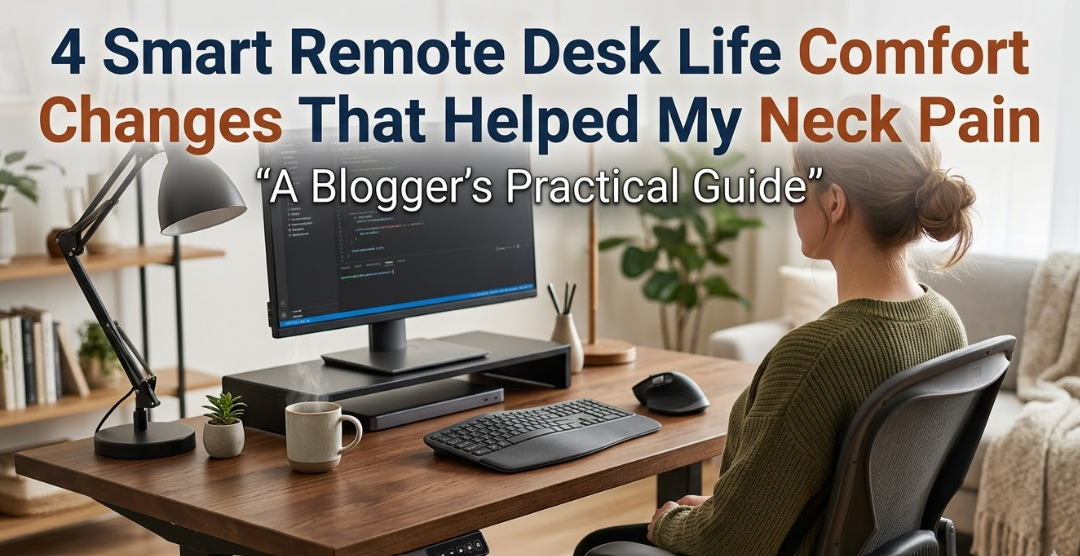
The fix? I stacked my laptop on a couple of thick hardcover books — an old dictionary and a design textbook I never read. Raised it maybe 5–6 inches. That’s it.
My eyes now meet the top third of the screen when I look straight ahead. No more turtle neck. No more ceiling-staring to “stretch.”
If you want to go a step further, a proper laptop stand (I eventually bought the Rain Design mStand for about $43) keeps things cleaner and more stable. But honestly? Books worked for weeks before I upgraded.
The rule to remember: Your monitor’s top edge should sit at or just slightly below eye level. If you’re tilting your head down to read, your neck is suffering for it.
Once I sorted my screen height, I needed an external keyboard and mouse — you can’t type comfortably on a raised laptop. I went with a basic Logitech wireless keyboard and mouse combo, around $35. Game changer.
2. My Chair Was the Real Villain — And a $25 Cushion Helped More Than I Expected
I want to be real with you: a proper ergonomic chair is the dream. The Herman Miller Aeron, the Steelcase Leap — those chairs are incredible. They’re also $1,000+, and I wasn’t about to do that without testing whether I even cared about ergonomics first.
So I started cheaper.
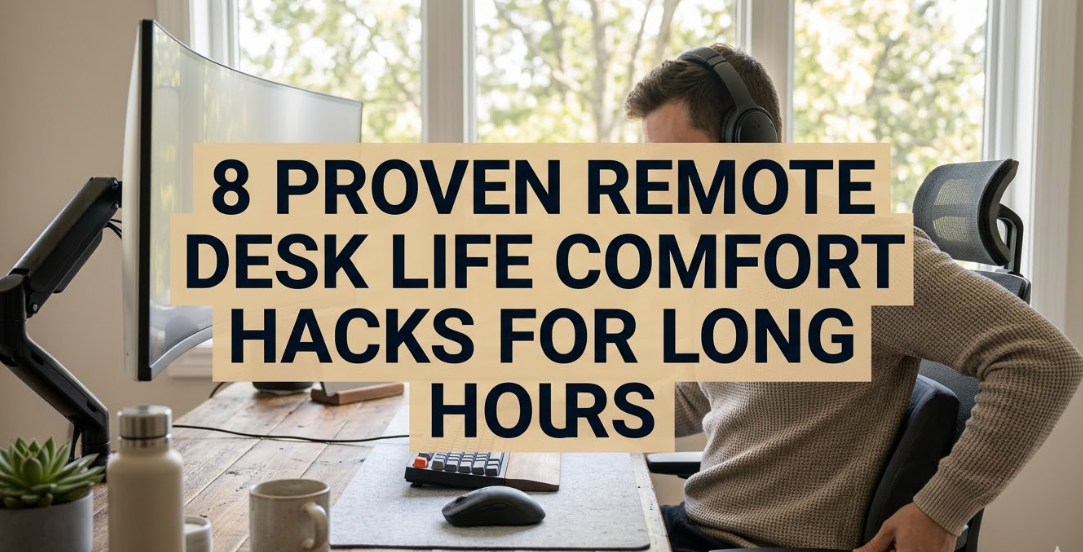
My dining chair had zero lumbar support. My lower back was essentially unsupported for eight hours a day. I bought a lumbar support cushion — a D-shaped memory foam one from Amazon for about $24. I strapped it to the back of my chair right at the curve of my lower back.
The relief was almost immediate. Not dramatic, but real. That hollow space between my back and the chair? Filled. My spine finally had something to press against instead of just… floating.
A few things I learned the hard way about chair setup:
- Your feet should be flat on the floor. If they’re dangling, put a footrest under them (or a box, or a stack of books — I used a shoebox for two months).
- Your knees should be at roughly a 90-degree angle. If the chair’s too high or too low, you’re adding pressure somewhere it shouldn’t be.
- Don’t sit all the way back against the backrest for hours. Try sitting slightly forward sometimes, which naturally engages your core and takes pressure off your lumbar.
I eventually upgraded to a mid-range ergonomic chair (the Hbada office chair, around $180) and yes, it was better. But the $24 cushion kept me functional for months before that. Don’t underestimate the cheap fix.
If you’re setting up in a small space and rethinking your whole layout, these workspace setup tips for small homes are worth a read — there’s some solid advice on chair positioning in tight rooms.
3. I Stopped Ignoring My Wrists — Carpal Tunnel Is Real
Okay, this one took me embarrassingly long to address.
About six months into working from home, I started getting a strange tingling in my right hand. Mostly in the mornings. I ignored it. Then it started happening during the day. I Googled it, convinced myself it wasn’t carpal tunnel, and kept ignoring it.
It was carpal tunnel. Or at least the early warning signs of it.
The problem? My wrist was bent upward at an angle every time I used my mouse. My keyboard was also slightly too high, which meant my wrists were flexed rather than neutral.
Two things fixed this:
A wrist rest for the keyboard. I got a basic gel wrist rest — the kind that sits in front of your keyboard. It keeps your wrists in a neutral, flat position instead of bent. The Kensington one is about $15 and it works perfectly.
Switching to a vertical mouse. This one felt weird for the first week. A vertical mouse turns your hand to a “handshake” position instead of flat, which reduces the rotational strain on your forearm. I used the Anker Vertical Ergonomic Mouse ($30ish), and after the adjustment period, I genuinely don’t understand why regular mice are still the default.
The tingling went away within three weeks of making these changes.
Also — and this sounds dumb simple — take your hands off the keyboard and mouse when you’re not actively typing. I used to rest my wrists on the desk while thinking, which actually compresses the carpal tunnel. Just… let your hands hang or rest in your lap during pauses.
Here’s a quick comparison of what changed for me:
| Issue | Old Setup | Fixed Setup |
|---|---|---|
| Wrist position | Bent upward (extended) | Neutral / flat |
| Mouse type | Standard flat mouse | Vertical ergonomic mouse |
| Keyboard height | Too high | Lowered to elbow height |
| Wrist rest | None | Gel wrist rest |
| Tingling/discomfort | Daily | Gone within 3 weeks |
4. The 20-20-20 Rule Sounds Stupid Until Your Eyes Are on Fire
I was getting headaches every afternoon. Not crushing migraines — just that dull, pressure-behind-the-eyes kind that makes you want to lie in a dark room. I blamed the work. I blamed stress. I blamed bad coffee.
It was screen fatigue.
Here’s the thing about remote work: you go from looking at a screen during work, to a phone screen during breaks, to a TV screen in the evening. Your eyes are never getting a break.
The 20-20-20 rule is simple: every 20 minutes, look at something 20 feet away for 20 seconds. That’s it.
I set a repeating timer on my phone (I use the free app “Time Out” on Mac, or just Google Timer if you’re on Windows). Every 20 minutes, I’d glance out the window for 20 seconds. Honestly felt ridiculous. The headaches started fading within a week.
A few other things that helped:
- Dark mode everywhere. My browser, my code editor, my email. Reduced the harsh contrast that was hammering my eyes.
- Blue light glasses. I was skeptical. I still am, a bit — the science is mixed. But I started wearing a cheap pair ($18 on Amazon) during deep work sessions and the afternoon headaches got even better. Placebo? Maybe. But I’ll take it.
- Matte screen protector. If you work near a window or under harsh overhead lighting, a matte screen protector cuts glare dramatically. I got one for my monitor for about $20 and it made midday work way more bearable.
Here’s roughly how these changes stacked up in terms of impact on my eye strain, just from my own experience:
Eye Strain Relief — What Helped Most (Personal Rating)
| Fix | Cost | Impact (my experience) |
|---|---|---|
| 20-20-20 rule | Free | Very high |
| Dark mode | Free | High |
| Matte screen protector | ~$20 | Moderate–High |
| Blue light glasses | ~$18 | Moderate (subjective) |
| Reducing phone use on breaks | Free | High |
For more on setting up your workspace to support focus and reduce physical strain, this guide on ergonomic essentials for remote workers covers some angles I hadn’t even considered when I started.

5. Movement Breaks Aren’t Optional — I Had to Schedule Them Like Meetings
Here’s the uncomfortable truth I had to accept: no ergonomic setup in the world fully compensates for sitting still for six hours straight.
I was doing exactly that. I’d sit down at 9 AM, and suddenly it was 1:30 PM and I hadn’t moved except to refill my coffee. My hips were stiff, my back ached, and I was in a weirdly bad mood — which, as I later learned, is partly a physical response to prolonged sitting.
What actually got me moving was treating breaks like calendar events.
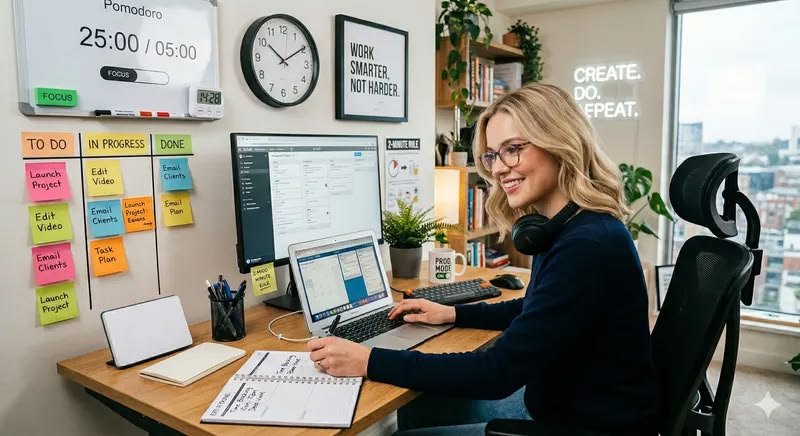
I use Google Calendar to block 5-minute movement breaks every 90 minutes. Not “I’ll get up when I feel like it” — actual calendar blocks, with a notification. When the notification fires, I get up. No negotiating.
What do I do during those five minutes?
- Walk to the kitchen and back (honestly, just moving is enough)
- A few shoulder rolls and neck stretches
- Touch my toes (or try to — still working on that)
- Look out the window (double-dips with the 20-20-20 rule)
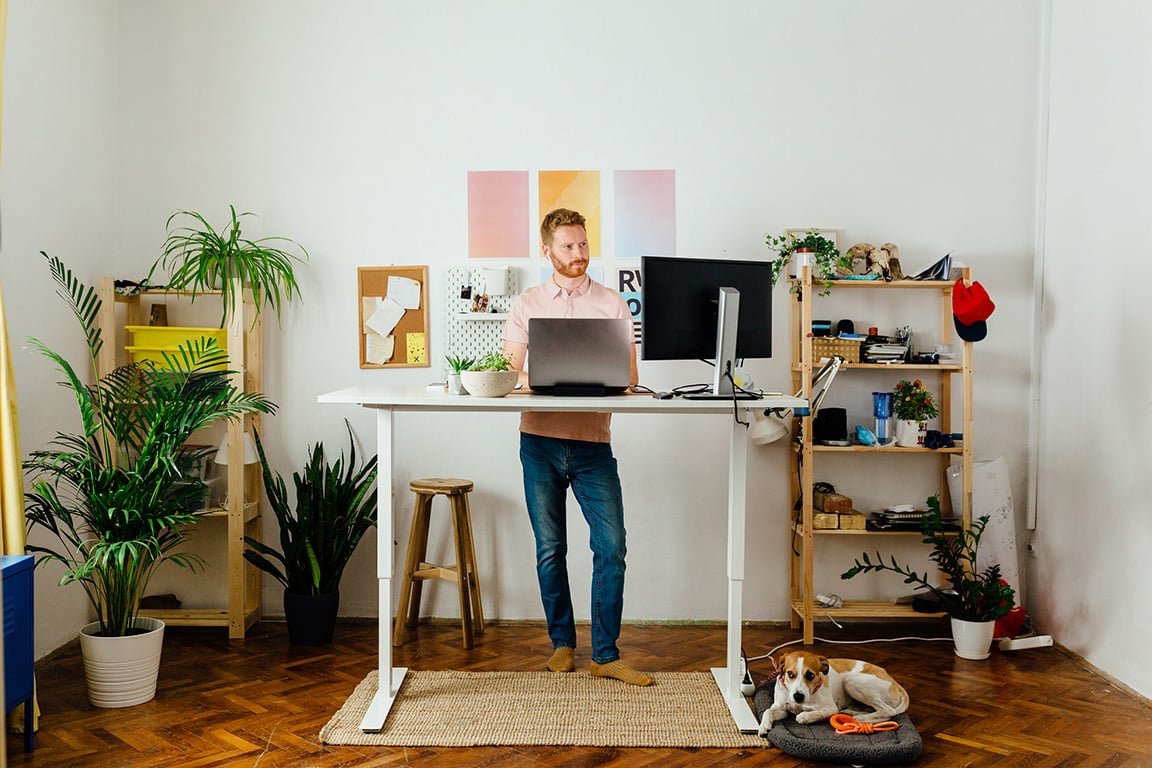
I also got a standing desk converter — a basic Z-shaped one that sits on my existing desk. It cost about $80 and lets me raise my work surface to standing height. I don’t stand all day — that’s also bad — but alternating between sitting and standing every 90 minutes has reduced my afternoon back pain significantly.
You don’t need the converter immediately. Start with the movement breaks. They cost nothing and the impact is surprisingly large.
One mistake I made early: using breaks to scroll my phone. That’s not a break — that’s just switching screens. Real breaks mean stepping away from screens entirely. Even two minutes of just standing by a window and looking outside does more than 10 minutes of Instagram scrolling.
If you want to see how I restructured my entire workday routine around these fixes (not just the physical stuff), this post on workday routines that boost focus has some practical scheduling ideas that pair well with what I’ve shared here.
Common Mistakes That Made Everything Worse
Before I figured this stuff out, I made some genuinely dumb errors. You don’t have to repeat them:
Thinking more expensive automatically means better. I bought a “gaming chair” early on because it looked ergonomic. It was terrible — too reclined, no real lumbar support, just aesthetic. A cheaper chair with good lumbar support beat it easily.
Only fixing one thing and expecting full relief. If your monitor height is wrong and your chair is bad and you’re not moving, fixing just one doesn’t solve much. You need to address the setup holistically.
Waiting until the pain was bad. By the time my neck seized up, I’d already done weeks of accumulated strain. The best time to fix your setup was before discomfort started. The second best time is right now.
Ignoring keyboard position. I focused so much on chair and monitor that I ignored where my keyboard was. Turns out it was slightly too far away, which meant I was reaching forward constantly — creating shoulder tension I couldn’t figure out the source of for months.
Where I Am Now
My setup isn’t perfect. I still catch myself hunching forward when I’m deep in a problem. I still sometimes skip a movement break when a deadline is looming. Habits take time.
But my neck pain? Mostly gone. Back ache? Down to occasional tightness that a quick stretch fixes. Afternoon headaches? Rare now.
The total cost of my fixes, not counting the standing converter:
| Fix | Cost |
|---|---|
| Laptop stand (books) | $0 |
| Lumbar support cushion | $24 |
| Gel wrist rest | $15 |
| Vertical mouse | $30 |
| Blue light glasses | $18 |
| Matte screen protector | $20 |
| External keyboard + mouse combo | $35 |
| Total | ~$142 |
Less than $150, spread out over a few months, and my body stopped hating me. That’s a pretty good return.
If you’re just starting to feel the strain of remote work — that low-grade neck stiffness, the afternoon back ache, the foggy headaches — don’t wait for it to get worse. Pick one fix from this list and start today. The monitor height one is free. Do that one first.
Also worth reading: 11 Powerful Remote Desk Life Setup Essentials Every Remote Worker Needs — a solid roundup of the gear and habits that make a real difference when you’re working from home long-term.